
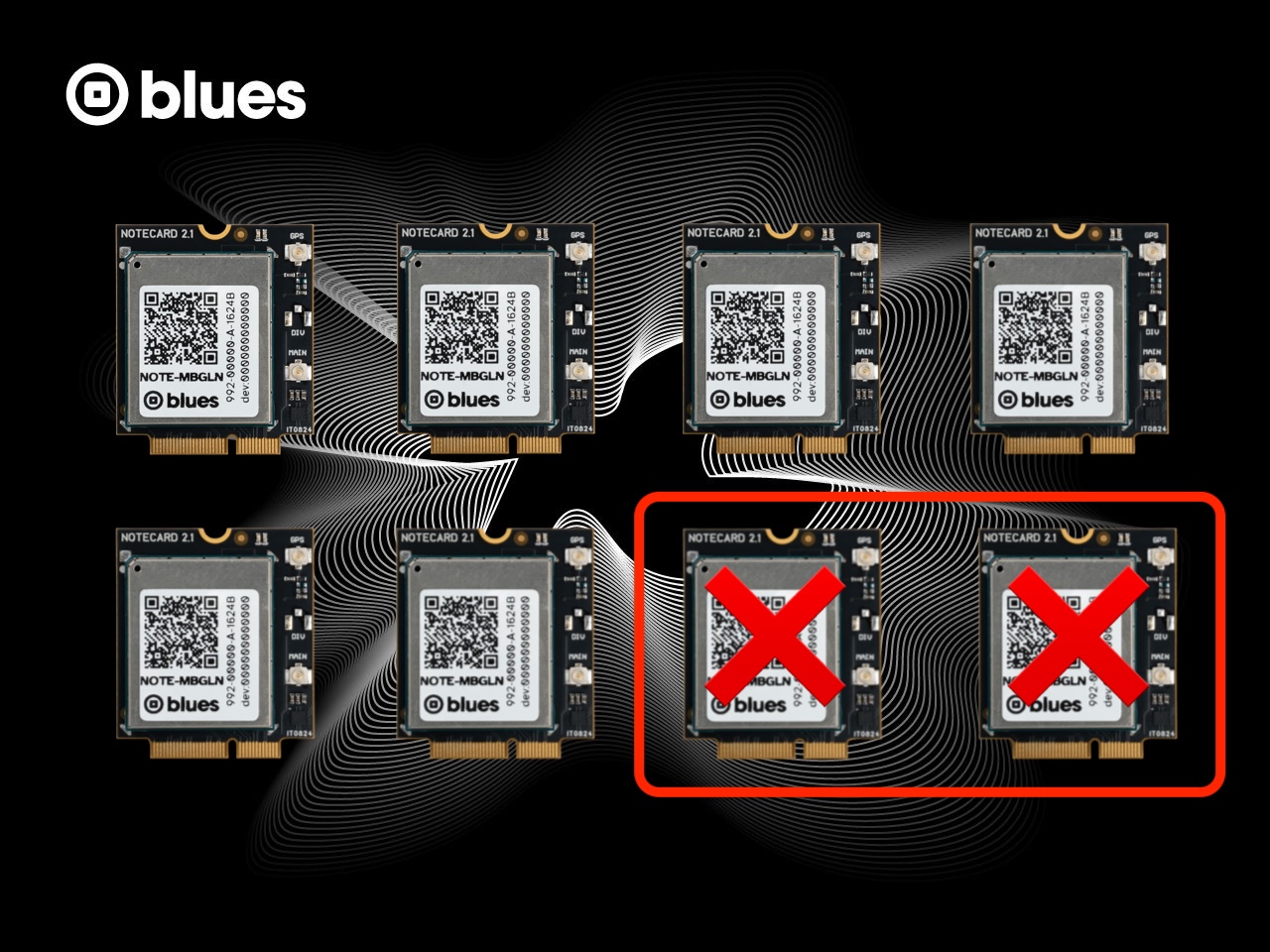

Today I want to show you a workflow you can use to detect and group inactive devices in your Notehub project. When in place, you’ll have a live-updating fleet that only includes devices Notehub hasn’t seen within a configurable time window.
Let’s look at how it works.
Step 1: Create Two Fleets
This workflow revolves around fleets, and to set it up for yourself you’ll need to create two of them.
All Devices
Your first fleet needs to contain all devices on your Notehub project. There’s a good chance you already have a fleet like this, because by default Notehub autoprovisions all new devices into a fleet named “My Fleet”.
Visit your project’s Settings page to see if you still have a fleet like this in place. If not, you’ll need to create one and add all your devices to it. I like calling my fleet “All Devices”, but you can use any name you’d like.

Inactive Devices
Next, create a second fleet named Inactive (or your name of choice). Eventually this fleet will contain only your inactive devices, but you can create it with just the default settings for now.

Step 2: Enable Watchdog Events
With your fleets created your next step is to enable watchdog events. In Notehub, watchdog events are a fleet-level feature that allow you to get notified when a device has been inactive for a specified period of time.
To enable the feature, return to your All Devices fleet, go to its Settings, and set an interval of your choosing. (During testing I recommend setting a short interval like one hour. You can always change the interval once you have things working.)

If you have any already-inactive devices on your project you should see your first _watchdog.qo event appear for those devices within five minutes. After that, you’ll see one _watchdog.qo event each time your configured interval passes with no activity. For example, here’s the list of events I saw on my project after a few hours had passed.

Step 3: Add Smart Fleet Rules
Your last step is to add smart fleet rules to your Inactive fleet. Smart fleet rules allow you to categorize devices based on event data, and you’ll use your newly enabled watchdog events to determine whether a device has been recently active or not.
To set this up, return to your Inactive fleet’s settings, add the following JSONata expression, and save.
(file = "_watchdog.qo")
    ? $addToFleet()
    : $removeFromFleet()
The code above is a JSONata expression that Notehub evaluates on each incoming event. The logic looks a bit complex, but it’s really doing one simple check: is the incoming event from the _watchdog.qo Notefile (does file = "_watchdog.qo")?
-
If
true, that means the device is inactive (that’s the reason why it’s getting a_watchdog.qoevent published), and that device should be added to the Inactive fleet ($addToFleet()). -
If
false, that means Notehub received non-watchdog data from this device, which means it no longer inactive, and should be removed from the Inactive fleet (removeFromFleet()).
The great thing about smart fleets is that once you save these rules—you’re good to go! Notehub will continuously manage your fleet based off incoming data, and you’ll reliably have an up-to-date list of inactive devices to work with.
Wrapping Up
In this article we looked at a workflow you can use to create a smart fleet of inactive devices on your Notehub projects.
What you do with this smart fleet is up to you.
For some, just having the list can be a nice way to spot check the health of their fleets at any time. For others, having automated reports can be a proactive way to investigate abnormal device behavior. For example, you could write a script that invokes the Notehub API’s Get Fleet Devices endpoint and emails you a list of your inactive devices daily.
Overall, with these Notehub features we aim to give you the tools you need to manage your fleets of devices easily, especially as your projects grow over time. If you have any feedback or suggestions, feel free to reach out in our community forum.