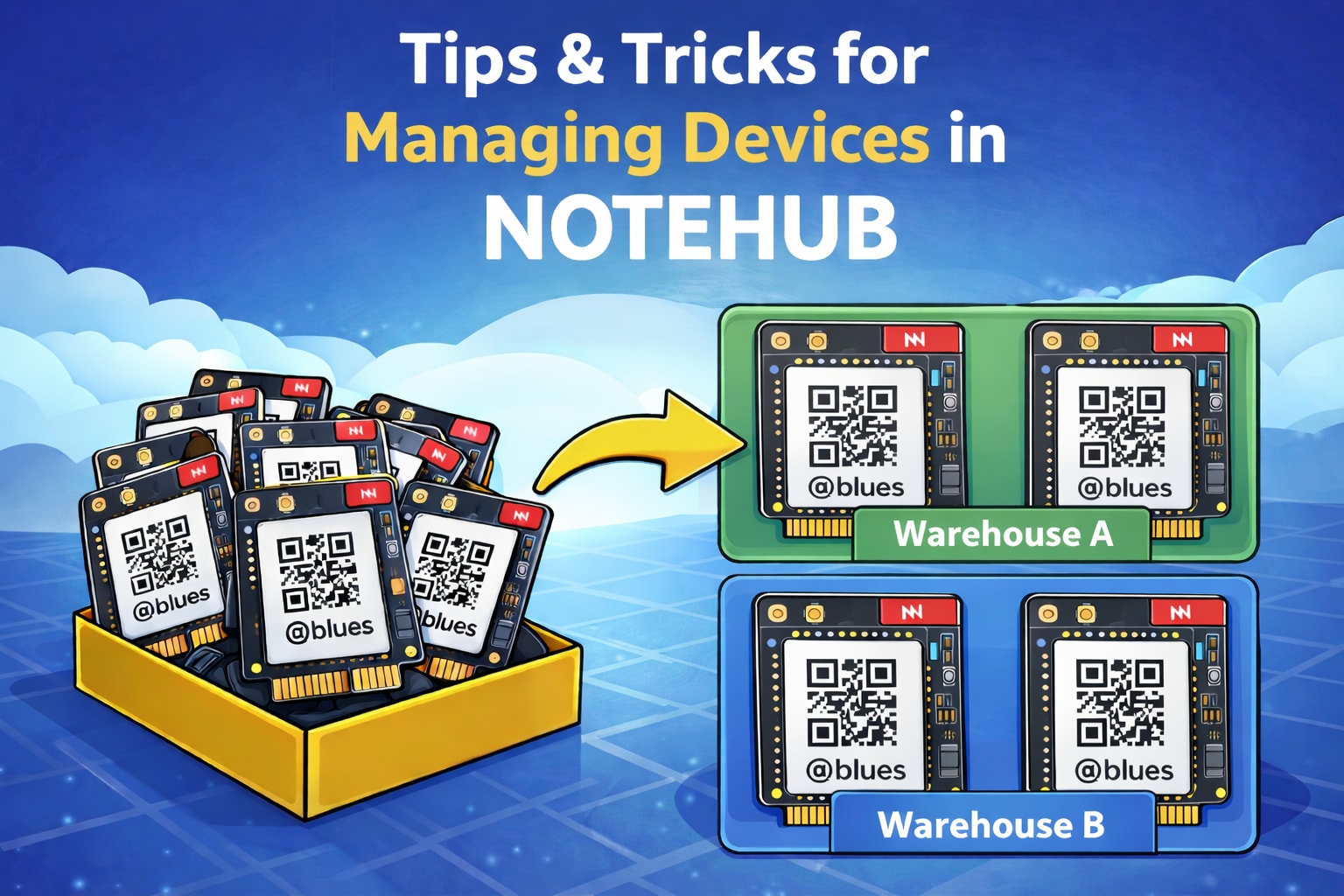

In this post I want to highlight a few Notehub tips & tricks that I’ve found useful as I’ve built projects that start to scale beyond a few devices.
I made this list intentionally skimmable so you can quickly scan for features that might help your own projects and workflows.
Assign Serial Numbers
Each Notecard has a factory-assigned, globally unique identifier known as a DeviceUID. Notehub uses this identifier in the Devices view by default, giving each device a label like dev:868531061604976.
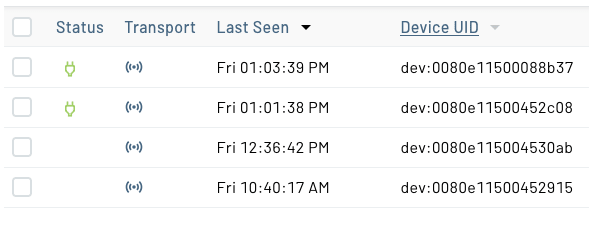
That's fine for a handful of devices, but as your project scales, long identifiers become harder to read in the Devices list. Assigning a serial number to each device to use a human-readable name can help considerably.
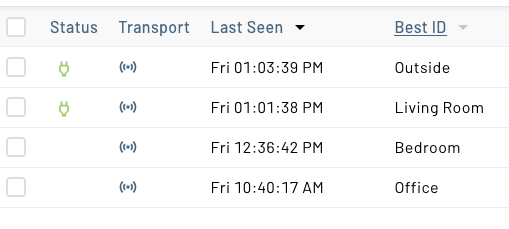
 note
noteAnother common use of the serial number is to associate each Notecard with an identifier from your own internal system, such as a SKU, asset tag, or a database ID.
There are three ways to assign a serial number.
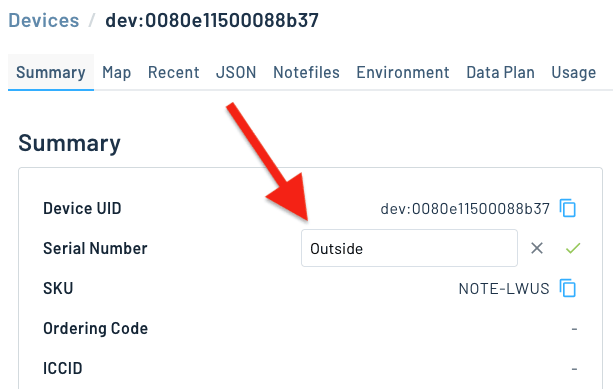
In the Notehub UI: Double-click any device in the Devices view to open its details, then edit the Serial Number field directly.
Via the Notecard API: Include an sn argument in the hub.set request you use to configure your Notecard.
{
  "req": "hub.set",
  "product": "com.your-company.your-name:your-project",
  "sn": "Outside"
}
Via the Notehub API: Set the reserved _sn environment variable using the Set Device Environment Variables endpoint. This is useful when you want to assign or update serial numbers programmatically from your backend without involving the device's firmware.
curl -X PUT \
'https://api.notefile.net/v1/projects/<projectUID>/devices/<deviceUID>/environment_variables' \
-H 'Authorization: Bearer <access_token>' \
-d '{"environment_variables": {"_sn": "Outside"}}' tip
tipOnce a serial number is set, you can use it in place of a DeviceUID in Notehub API calls by prefixing it with sn:. For example, rather than using /v1/projects/{projectUID}/devices/dev:868531061604976, you can use /v1/projects/{projectUID}/devices/sn:Outside.
Organize With Fleets
Fleets are Notehub's primary tool for grouping and managing devices. Every project starts with a default All Devices fleet, but you can create additional fleets to organize devices however makes sense for your project—by location, device type, customer, hardware revision, or any other criteria you choose.
Creating Fleets and Adding Devices
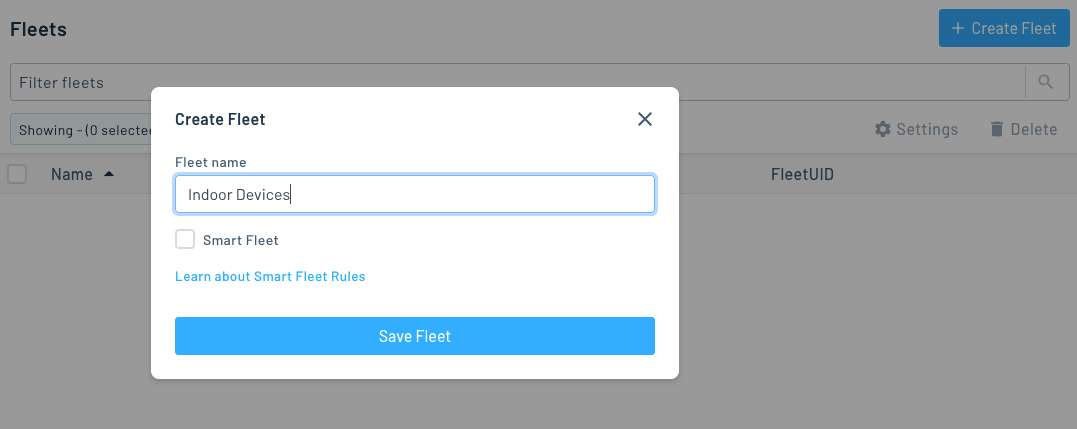
To create a fleet in Notehub, navigate to your project and click the Fleets item in the sidebar, then click Create Fleet and give it a name.
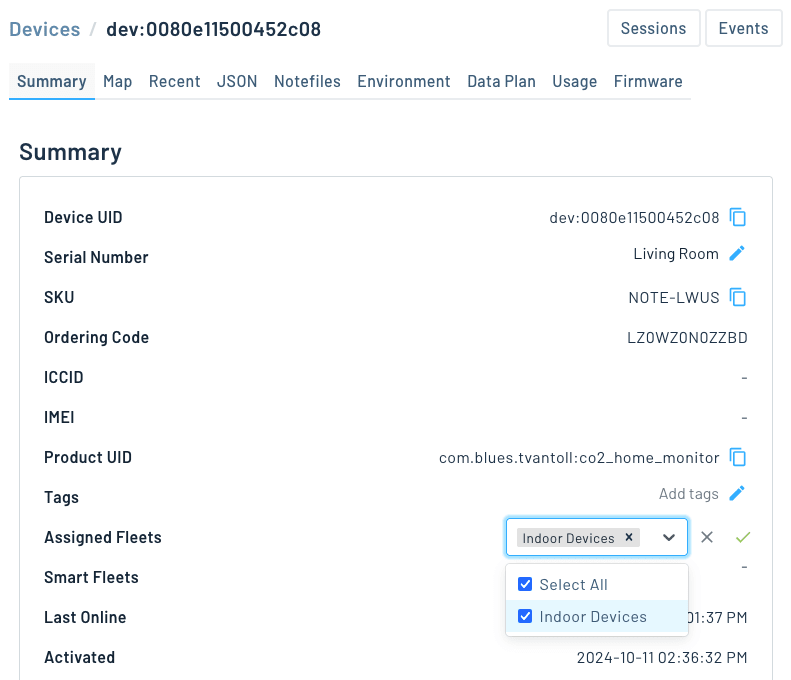
Once a fleet exists, you can add devices to it by opening a device's detail view and selecting the fleet from the Fleets section.
You can also add devices to fleets programmatically using the Add Device to Fleets endpoint in the Notehub API, which can be useful if you want to perform fleet assignments in dashboards, or as part of automated workflows.
Once your devices are in fleets, there are a number of useful things you can do. Here are three examples.
tipIf you’d rather not assign devices to fleets manually, you can add Smart Fleets Rules to your fleet. When enabled, smart fleet rules automatically add or remove devices from fleets based on their data.
Example 1: Use Fleet-Level Environment Variables
Fleet-level environment variables are one of the most powerful tools available once your devices are grouped.
Environment variables are key-value pairs that propagate from Notehub to your devices automatically on their next sync. When you set an environment variable on a fleet, every device in that fleet receives it, with no firmware changes needed.
To set a fleet environment variable, navigate to your fleet's Settings tab and look for the Environment Variables section.
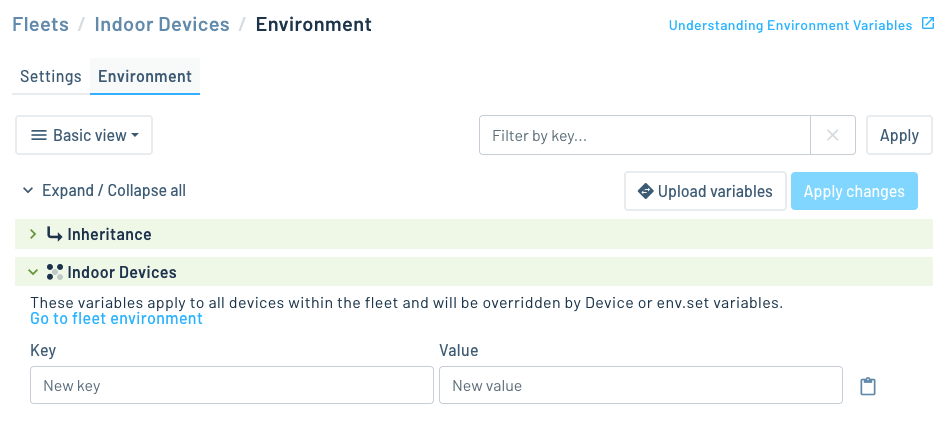
As a concrete example, suppose you build and sell temperature monitoring devices to multiple customers. Customer A monitors food storage and wants to be alerted when temperatures exceed 40°F. Customer B monitors a server room and wants alerts above 80°F. Rather than managing separate firmware builds for each customer, you can give each customer their own fleet, and set an alert_temp environment variable on each fleet to the appropriate value.
Your firmware reads alert_temp on startup and uses it to determine when to fire an alert, with no firmware changes needed when either customer wants a different threshold.
noteYou can also set fleet environment variables through the Notehub API's Set Fleet Environment Variables request if you want to automate this as part of a larger workflow.
Example 2: Stage Firmware Updates
Fleets also give you a natural way to stage firmware updates before rolling them out to your entire deployment. Here’s a common workflow you can use:
-
Create a
betafleet. Give it a name like "Beta" or "Staging"—something that makes its purpose clear to anyone on your team. -
Add a small number of devices to the fleet. Ideally devices you can access directly, such as test devices in your office.
-
Deploy new firmware to the beta fleet first. Notehub's user interface and Perform DFU Action APIs both allow you to scope firmware updates to a single fleet.
-
Monitor and verify. Once the update rolls out to your beta devices, check that everything is behaving as expected before proceeding.
-
Promote the update to your broader fleet. Once you're confident the firmware is solid, push the update to the rest of your devices.
This approach helps you catch firmware problems early on testing devices, before deploying the changes broadly.
Example 3: Monitor for Inactive Devices
Notehub's watchdog events lets you get notified when a device hasn't been heard from in a set period of time. To enable the feature open a fleet's Settings, find the Watchdog section, and set an interval as shown below.
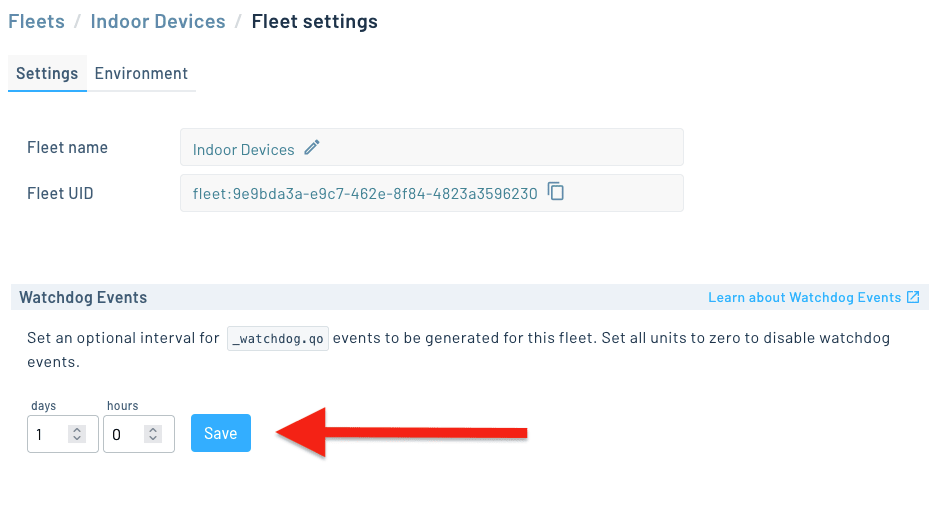
Once enabled, Notehub fires a _watchdog.qo event for any device in the fleet that doesn't connect within the configured interval. You can then route those events to trigger an alert, such as an email, a Slack message, or whatever makes sense for your project.
Use Tags
Tags are a lighter-weight way to organize devices in Notehub. Where fleets are full management constructs—complete with their own environment variables, watchdog settings, and smart-fleet rules—tags are simple labels you can attach to one or more devices for quick filtering and searching.
You can assign tags to a device in the Notehub UI by opening its detail view and editing the Tags field. To assign multiple tags to one device, use a comma-separated list.
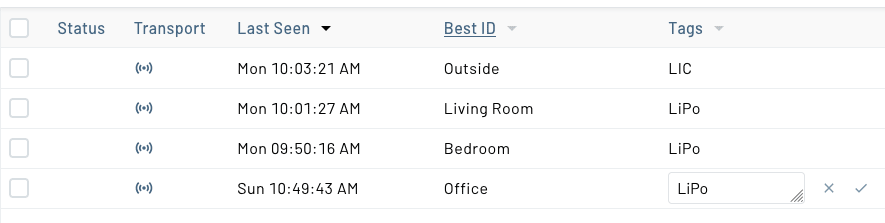
Tags can also be set programmatically. Under the hood, Notehub stores tags as the _tag reserved environment variable. You can set this variable using the Set Device Environment Variables endpoint:
curl -X PUT \
  'https://api.notefile.net/v1/projects/<projectUID>/devices/<deviceUID>/environment_variables' \
  -H 'Authorization: Bearer <access_token>' \
  -d '{"environment_variables": {"_tag": "outdoor,battery-powered"}}'
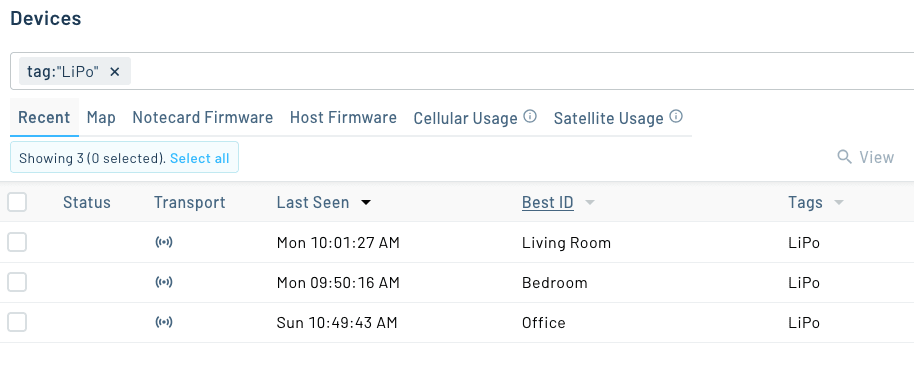
Once tags are applied, you can filter the Devices view by tag to quickly find what you're looking for, without needing to set up a dedicated fleet.
Save Favorite Filters
Notehub offers many ways to filter both Devices and Events, including filtering by DeviceUID, fleets, tags, location, firmware version, and more.
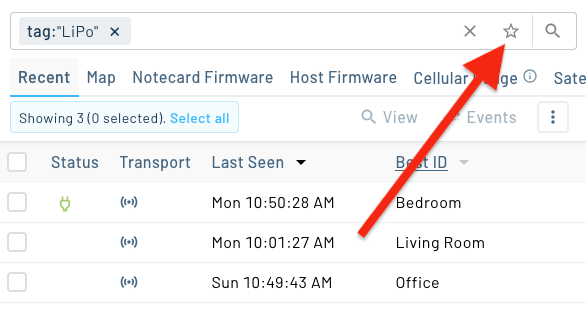
If you find a filter you like using, you can save it as a Favorite using the Star icon that appears on the right-hand side of the search box.
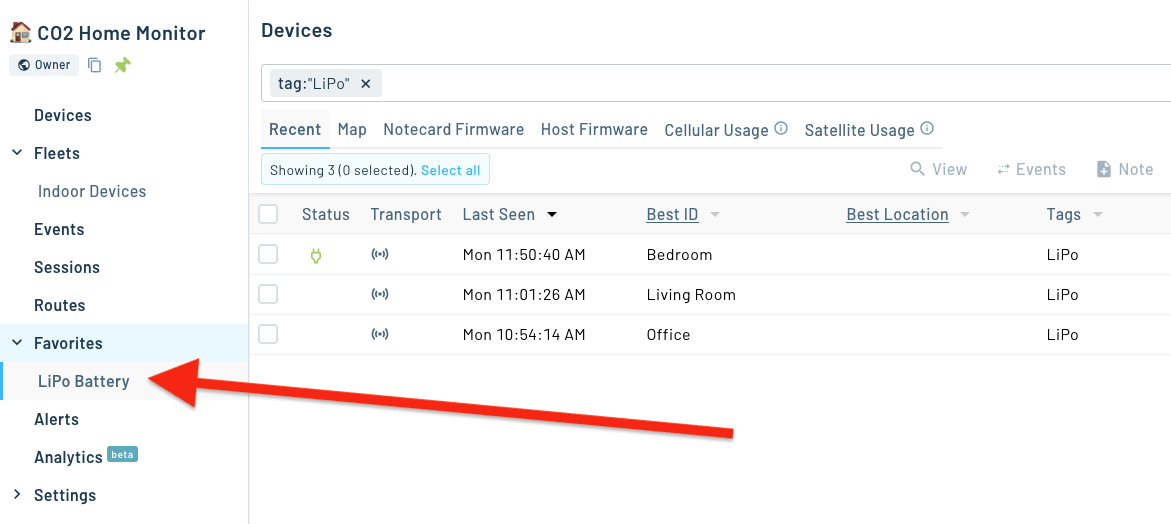
Once favorited, saved filters appear in your Notehub project’s Favorites section, allowing you to view the filtered list in one click.
Wrapping Up
I hope this post gives you some ideas for making life a little easier as your deployment scales up. If you have questions, feel free to get in touch on our developer forum.
