

Battery-powered IoT devices rarely "just fail". You've likely seen this first-hand: they get a little colder, a little lower on charge, a little farther from the cell tower, and then they go quiet. By the time someone notices, the device has been dark for a week, the battery is below the recovery threshold, and nobody can tell whether it's a hardware problem, a coverage problem, or a firmware problem.
To me, this isn't just a power problem. It's also not solved by just throwing a bigger battery on the device. I think it's more of a design problem, and the fix is rarely a single setting. A reliable low-power Blues Notecard-based product combines a proper power reserve, voltage-aware network sync behavior (with conservative voltage thresholds), and a host MCU that actually sleeps. Done well, the device doesn't just last longer. It degrades gracefully, reporting less often when energy is scarce instead of disappearing entirely (and even sends out one last "SOS" so you know it has gone down and why).
Think of Low Power as a System Behavior
Blues Notecard is built to stay continuously powered, idling at roughly 8–18 µA @ 5V depending on the model (e.g. cellular, satellite, LoRa, or WiFi). That's a great starting point, but it's also where a lot of teams stop reading! In a real deployment, the host MCU, sensors, regulators, level shifters, and idle pull-ups will almost always dominate your power budget.
So before you do anything else, get yourself in the mindset that low power is a system behavior that is impacted by every piece of hardware, every library, and every setting you're tweaking.
Now let's dive into six issues I see most often, and how to avoid each one...
Mistake #1: No Backup Energy Reserve
Powering a cellular radio is more about peak draw than average draw. A single connection attempt can spike well past a depleted battery's instantaneous current capability, especially in cold weather, weak coverage, or after the battery has aged. In these cases Notecard can "brown out": you lose the session and the device's default behavior is to retry until Notecard intelligently puts itself in an "insufficient power supply" penalty box.
This is why I'm a fan of putting a small energy reserve between the battery and Notecard. The Blues Scoop is a great example. It's a 250F lithium-ion capacitor (LIC) sized specifically to absorb cellular transmit spikes.
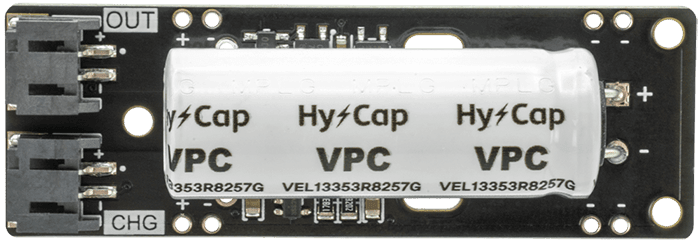
Internal testing has shown Scoop powering ~20 cellular on/off connection cycles or up to 240 minutes of a single cellular session before requiring a recharge.
If your product has to report from weak coverage, depleted batteries, or intermittent solar, give the radio enough margin to finish what it woke up to do.
Mistake #2: Notecard Sync Cadence That Ignores Battery Voltage
Most teams ship with a static sync schedule because it's easy (and frankly it's how we introduce you all to the periodic syncing behaviors of Notecard!):
{
"req": "hub.set",
"mode": "periodic",
"outbound": 60,
"inbound": 120
} note
noteNew to Blues Notecard? This command tells the device to only sync periodically (i.e. to not maintain a continuous network connection) and, if there is data to sync from the device, sync outbound data every 60 minutes. But no matter what, check if there is any inbound data to sync from the cloud every 120 minutes.
Now these settings are fine when power is stable. But it is exactly the wrong config to use when the battery is dropping. You're sending data at the same rate at 4.1V as at 3.4V, and that aggressive cadence can be what pushes a struggling device into the ground.
Notecard solves this with
voltage-variable sync behaviors
via the voutbound and vinbound arguments of the
hub.set API. You
give Notecard a per-state schedule, and it picks the right cadence based on the
current voltage:
{
  "req": "hub.set",
  "mode": "periodic",
  "voutbound": "usb:30;high:60;normal:240;low:720;dead:0",
  "vinbound": "usb:60;high:120;normal:720;low:1440;dead:0"
}
When power is abundant (e.g. usb, high) you sync often. When power is scarce
(e.g. low) you back way off. A 0 disables that timer for that state, useful
when you've reached "preserve power at all costs" mode.
 tip
tipThe voltage levels assigned to high, normal, low, etc. are configured via
the
card.voltage API
and can be tuned for your specific hardware.
Mistake #3: Voltage Thresholds That Trigger Too Late
The aforementioned voltage-variable sync behavior only helps if your thresholds
alter behavior before the device is in trouble! For example, the built-in lipo
mode in card.voltage maps to:
usb:4.6;high:4.0;normal:3.5;low:3.2;dead:0For your deployment, waiting until a LiPo is at 3.2V to enter low may be too
late. By then the modem may already be browning out under load, and your
"low-power" mode is effectively in a recovery mode. There are presets for
lipo, alkaline, l91, tad, and lic battery chemistries, but I recommend
treating them as a starting point and dialing in custom thresholds with
card.voltage:
{
  "req": "card.voltage",
  "mode": "usb:4.6;high:4.2;normal:3.7;low:3.4;dead:0"
}
Pick thresholds based on your battery chemistry, current usage, and ambient temperature range. Then test, test, and test some more in extreme (but real world) conditions.
Mistake #4: Going Dark Without a Warning
Voltage-variable syncing helps your devices slow down when needed. But it doesn't tell YOU why the device is slowing down, and a tired device that quietly stops checking in looks identical to a tired device that just died.
The fix is a small "SOS" pattern. On every host wake, you can use Notecard's
card.voltage API to get a voltage reading:
{"req": "card.voltage"}If the returned value crosses below a threshold you specify (or if the rate of
decay between this read and the last is sharp enough to suggest you might be
running on a LIC for instance), send an immediate Note with sync:true, ahead
of your normal cadence:
{
  "req": "note.add",
  "file": "low-power-alert.qo",
  "body": { "reason": "low_voltage", "voltage": 3.32 },
  "sync": true
}
Alert Monitors in Notehub
Another option for more routine monitoring of voltage levels is to take
advantage of
Alert Monitors in
Notehub. These let you specify specific thresholds for any value in the body
of any Note.

Mistake #5: A Host That Never Truly Sleeps
Here's another common scenario: you put Notecard into an elegant
voltage-variable schedule, then leave the host MCU spinning forever while
running delay(1000).
Our
Low-Power Firmware Design guide
puts it bluntly: in a well-designed product, the host MCU (not Notecard) is
usually the largest contributor to idle draw.
That means the host should spend the vast majority of its time in true deep
sleep mode (e.g. STM32 STOP/STANDBY, ESP32 deep sleep, nRF52 System OFF),
waking only on an RTC tick or an external interrupt. Notecard's ATTN pin is
built for exactly this: wire it to a host EN or wake input and let Notecard
tell the host when it's time to do work.
You can invoke this behavior with Notecard's card.attn API to instruct Notecard to power down the host and wake on a cadence:
{
  "req": "card.attn",
  "mode": "sleep",
  "seconds": 3600
}Consult our sample app on Putting a Host to Sleep Between Sensor Readings for a full end-to-end example.
Mistake #6: Skipping the _health.qo Postmortem
If a device does truly go dark, the first place I'd look for information is the _health.qo system Notefile. Notecard logs its own significant health events here, and brown-outs show up as a very specific string:
{ "text": "boot (brown-out & hard reset [15117])" }This is Notecard telling you it lost power unexpectedly, likely a sign that the battery couldn't sustain the previous connection attempt or maybe a component on the same power rail pulled it down hard.
noteYou may wonder why a _health.qo brown-out event shows up in Notehub but the
Note the device was trying to sync right before the reset never arrives. That's
likely because the brown-out happened during the connection attempt. Usually
because the radio's transmit current exceeded what the battery could supply due
to weak coverage forcing higher transmit power, an oversized payload, or both.
Next Steps (Before You Deploy!)
Before shipping your next battery-powered Notecard product, push back on your design with six questions:
-
What keeps the device alive long enough to finish a sync under bad conditions? If the answer is "a fresh battery"...you don't have an answer.
-
How does sync behavior change as voltage drops? If the answer is "it doesn't," go set up some
voutbound/vinboundvalues. -
Are your voltage thresholds set right to prevent failure, not just detect it? Test under load, in cold, and on a battery that's already cycled.
-
Will your fleet hear from the device before it goes dark? If not, add an "SOS" Note that fires when voltage crosses a low threshold.
-
Is the host actually asleep, or just waiting? Put a current meter on it and the data it provides will tell you pretty quickly!
-
Are you reading what
_health.qois trying to tell you? When a device disappears, that's the first place to look.
Build for graceful degradation, not a perfectly stable power budget. Real deployments aren't stable. The devices that survive are the ones that knew how to slow down.
Happy Hacking! 💙