

Hey there! It’s been a busy few months on the Notehub team, and today I want to run through the features and improvements we’ve shipped since our last update. As always, everything here is live in Notehub today, so feel free to follow along in your own projects.
Let’s dig in.
Notehub IQ
First, a reminder in case you missed it: Notehub IQ is now in public beta.
Notehub IQ is an intelligence layer for Notehub. Instead of standing up a database, defining a schema, and writing SQL every time you have a new question about your fleet, you point an MCP-capable client (Claude, Codex, Copilot, etc) at the Notehub MCP server, sign in with your Notehub account, and ask questions about your projects in plain language.

Notehub IQ is free while it’s in public beta. To learn more, read the announcement blog post, watch an introductory video, or head straight to the Notehub IQ documentation to get set up.
Two-Factor Authentication
Notehub now supports two-factor authentication (2FA) on all accounts, and organizations can require it of their members.
To enable 2FA for your own account, open the account menu in the top-right corner of Notehub, choose Profile settings, and find the Two-Factor Authentication section. Scan the QR code with an authenticator app (Google Authenticator, Microsoft Authenticator, Authy, 1Password, etc), or enter the secret key manually, then type in the six-digit code to confirm.

As soon as you enroll, Notehub generates a set of backup codes and prompts you to save them.

These are one-time codes that get you back into your account if you lose access to your authenticator app, so copy or download them and put them somewhere safe. (You can view them again later, and you can regenerate a fresh set at any time, which invalidates the old ones.)
Once you enable 2FA, all subsequent logins to Notehub will require a code from your authenticator app after your password.
Requiring 2FA Across an Organization
If you’re an organization admin, you can also require 2FA for everyone in your organization. The setting lives on the Members tab of your organization and is labeled Require two-factor authentication.

A few details worth knowing:
- You have to enroll your own account before you can turn the requirement on. (This prevents an admin from locking themselves out of their own organization.)
- The requirement applies to every member of the organization, including guests who can only access a project the organization owns.
- Nobody gets kicked out when you flip the switch. Members who haven’t enrolled yet are prompted to set up an authenticator app the next time they use Notehub, and can’t continue until they do.
- Only organization admins can change the setting.
Read more in Securing Your Account with Two-Factor Authentication and Requiring Two-Factor Authentication.
Customizable Table Columns
Next is my favorite feature of this post: customizable columns.
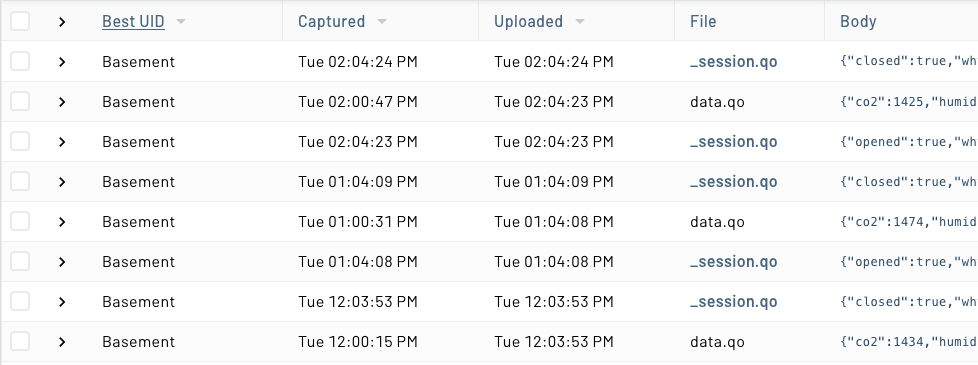
In Notehub, the Events and Devices pages have a new button with a column icon in their toolbars. Click it to open the Customize Columns panel, where you can toggle table columns on and off, and drag them into whatever order you like.

Here are a few notes on how it works.
Dropdown Columns
Many columns in Notehub let you toggle between showing different values. For example, the Events page has a column that lets you toggle between Captured and Uploaded, and a column that lets you choose between Best Location, Tower Location, Device Location, and Triangulated Location.
For these columns not only can you customize their order, you can also change their default value. For example, if you’d prefer to always see Captured timestamps instead of Uploaded timestamps, all you need to do is update the dropdown in the dialog and hit Apply.
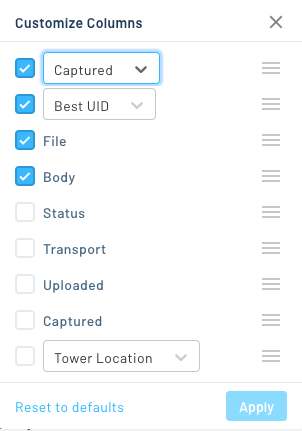
As you can see at the bottom of the screenshot above, we also added separate Uploaded and Captured columns. This lets you view both timestamps in the same table, which wasn’t possible before.
Remembering Your Selections
Your column choices and order are saved in your browser, so your tables look the way you left them when you return. (We also save the widths of any columns you resize as well.)
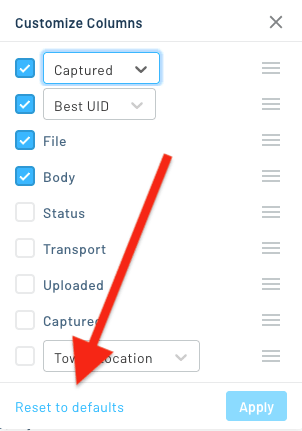
If at any point you want to return to the default layout, you can click the Reset to defaults button in the customize columns dialog.
Search and Filter Improvements
Notehub has always provided a variety of ways to filter your devices. You can see the full list by focusing the text input at the top of your Devices or fleet screens.
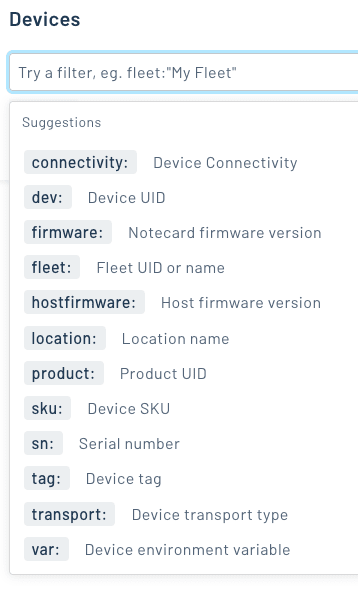
The newest addition is the filter at the bottom of that list, var:. This new filter lets you filter devices by environment variables, and environment variable values.
Here are the available filters:
| Filter | What it matches |
|---|---|
var:my_var | Devices that have my_var set. |
var:my_var=production | Devices that have my_var set to production. |
var:my_var!=production | Devices that have my_var set, but not set to production. |
var:my_var>50 | Devices that have a numeric my_var set, and its value is greater than 50. |
var:my_var<50 | Devices that have a numeric my_var set, and its value is less than 50. |
The filter menu suggests variable names as you type, and once you type = or != it suggests values that actually exist in your project.
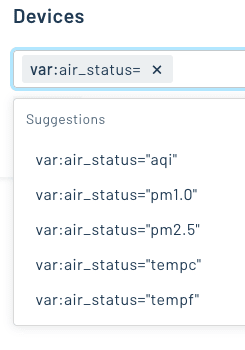
A couple of notes about how these new filters work:
- Unlike most Notehub filters, which do a case-insensitive partial match,
var:matches values exactly and is case sensitive. var:matches variables set directly on the device or fleet, not variables defined at the project level.
Audit Log Improvements
Finally, two improvements to Notehub’s audit logs.
Environment Variable Changes Are Now Logged
Environment variable changes made through the Notehub UI now show up in the audit log, at the project, fleet, and device level. Each entry records who made the change and a description of what happened.
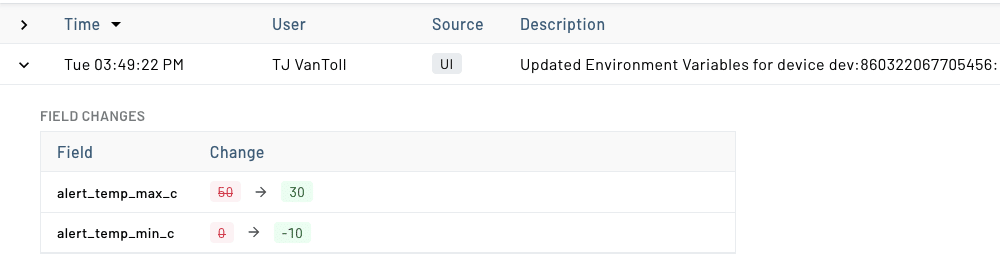
New Audit Log Filters
Audit logs also have a new set of filters, on both the project and organization audit log pages. This includes the ability to filter the logs by date, description, user, and source (Notehub UI or Notehub API).
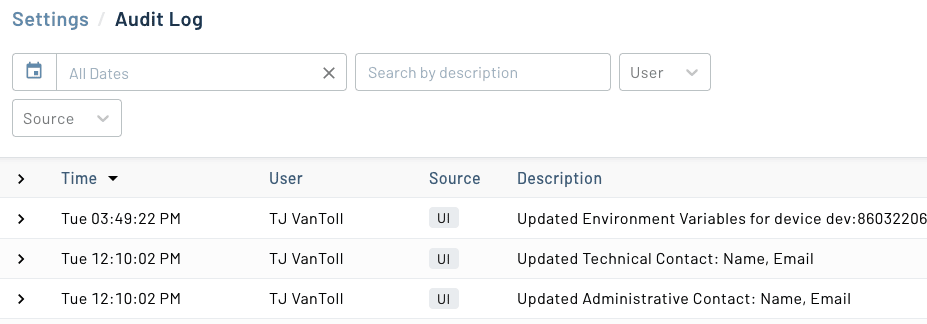
All four filters are reflected in the page’s URL, so you can bookmark or share a filtered view.
Wrapping Up
And, that’s it!
Give these a shot in your own projects, and if you have feedback, requests, or ideas for what we should build next, let us know in our community forum.