Storing Device State with DB Notefiles
A DB Notefile is a database of Notes that is bidirectionally replicated between a Notecard and Notehub. Each Note has a name and a JSON body, and both the device and the cloud can read and update it.
DB Notefiles are ideal for storing per-device state that can be changed both on the device and in the cloud.
Consider a smart thermostat, whose temperature, mode, and schedule can be updated either on the physical device, or through a cloud-based app. Because both sides must stay synchronized, this type of per-device state is a perfect fit for a DB Notefile.
This table summarizes where DB Notefiles fit among Notecard's data-management options:
| If you need to... | Use | Why |
|---|---|---|
| Send sensor readings to the cloud | An outbound queue (.qo/.qos) | Readings are individual records that only need to travel from the device to the cloud; no shared state is required |
| Send commands or requests to a device | An inbound queue (.qi/.qis) | Commands are individual messages that only need to travel from the cloud to the device |
| Apply configuration across many devices | Environment variables | Configuration is managed in the cloud and can be shared across a project or fleet, with device-specific overrides when needed |
| Read and write per-device state from both the device and the cloud | A DB Notefile (.db/.dbs) | Both sides can update the same persistent state, and changes are synchronized between them |
| Persist device-local data that should never sync | A local-only DB Notefile (.dbx) | The data needs to persist on the device, but there is no reason to send it to the cloud |
The rest of this guide works through a connected thermostat that uses every
row of this table: when to reach for DB Notefiles, how to simplify them with
the var API, and how to use local-only .dbx Notefiles as a persistent
key-value store that never syncs.
When to Use DB Notefiles
Notecard offers two built-in mechanisms for managing values that live on both a device and in the cloud — environment variables and DB Notefiles — and choosing between them is the most common point of confusion when designing a connected product. This distinction is a good way to decide:
- Environment variables answer "what should these devices do?" They are configuration and policy, managed in Notehub, that flows down to devices through a hierarchy of Project, Fleet, and Device scopes. Their values are always strings.
- DB Notefiles answer "what is the current state of this device?" They are per-device values, owned jointly by the device and the cloud, that either side can read and write. Their values are Notes with structured JSON bodies.
Here is how you could apply this distinction to the smart-thermostat example:
| Value | Mechanism | Why |
|---|---|---|
| Temperature readings | Outbound queue (data.qo) | Events, streamed one-way to the cloud |
| How often to report temperature readings | Environment variable (reading_mins) | Set in Notehub once, for the whole fleet or project |
| Target temperature, operating mode | DB Notefile (vars.db) | Per-device state, changeable from the wall unit and the cloud |
| Display brightness | Local-only Notefile (local.dbx) | Private device state that's not worth syncing |
A few additional rules of thumb:
- If a value should apply to many devices at once, it's an environment variable. There is no fleet-level equivalent for DB Notefiles — each device's DB Notefiles are replicated with that device alone.
- If a value is regularly written by the device and read by the cloud (or vice versa), it's a DB Notefile. Environment variables are designed to flow from Notehub to devices.
- If a value needs a structured body, numeric or boolean types, or multiple fields, it's a DB Notefile. Environment variable values are strings.
- If a value is an event — something that happened at a moment in time rather than a current condition — it belongs in a queue Notefile, not a DB Notefile.
Storing Simple Values with the var API
Much of a device's state consists of single, simple values—for example,
the thermostat's target temperature is a number, and its operating mode
is a string. For values like these, the
var requests provide the
simplest way to use a DB Notefile: var.set, var.get, and var.delete are
shorthand for the underlying note.update, note.get, and note.delete
requests, where the variable's name is the Note ID and the value is stored in
the Note's body.
By default, variables live in a DB Notefile named vars.db, which the
Notecard creates automatically the first time you set a variable. (You can
target a different DB Notefile with the file argument.) Because vars.db
is a regular .db Notefile, every variable you set is replicated to Notehub,
where you can view and change it.
A variable holds one of three typed fields: text for strings, value for
numbers, and flag for booleans. Here's how the thermostat firmware could
store two state values, a number for target temperature (target_temp) and
a string for operating mode (mode).
{
  "req": "var.set",
  "name": "target_temp",
  "value": 21.5
}J *req = notecard.newRequest("var.set");
JAddStringToObject(req, "name", "target_temp");
JAddNumberToObject(req, "value", 21.5);
notecard.sendRequest(req);req = {"req": "var.set"}
req["name"] = "target_temp"
req["value"] = 21.5
card.Transaction(req){
"req": "var.set",
"name": "mode",
"text": "heat"
}J *req = notecard.newRequest("var.set");
JAddStringToObject(req, "name", "mode");
JAddStringToObject(req, "text", "heat");
notecard.sendRequest(req);req = {"req": "var.set"}
req["name"] = "mode"
req["text"] = "heat"
card.Transaction(req)var.set is an "upsert": if the variable doesn't exist yet it's created, and
if it does exist its value is replaced. Your firmware doesn't need to worry
about whether it's creating or updating a variable.
Like other Notefile changes, a var.set doesn't cause an immediate sync, and
the new value won’t travel to Notehub until the next sync as determined by your
hub.set mode and outbound period.
For state changes a user expects to see in the cloud promptly, like a
target-temperature change from the thermostat's dial, add "sync": true to
the request to trigger an immediate sync.
To read a variable back, for example when the thermostat’s display
needs the current target temperature, use var.get:
{
  "req": "var.get",
  "name": "target_temp"
}J *req = notecard.newRequest("var.get");
JAddStringToObject(req, "name", "target_temp");
J *rsp = notecard.requestAndResponse(req);
double targetTemp = JGetNumber(rsp, "value");
notecard.deleteResponse(rsp);req = {"req": "var.get"}
req["name"] = "target_temp"
rsp = card.Transaction(req)
target_temp = rsp["value"]The response returns the typed field you stored:
{
  "value": 21.5
}
Storing Structured State with note Requests
Some state is more than a single value. A thermostat's weekly schedule, for
example, is a set of periods, each with a start time and a target temperature.
For structured state like this, use the
note requests directly
on a DB Notefile of your own, where each Note gets a developer-chosen Note ID that
acts as its key, and a JSON body that holds the structured value.
For the thermostat, a schedule.db Notefile with one Note per schedule
period works well:
| Note ID | Body |
|---|---|
weekday-morning | {"start": "06:30", "temp": 21} |
weekday-day | {"start": "08:30", "temp": 17} |
weekday-evening | {"start": "17:00", "temp": 21} |
weekend | {"start": "07:30", "temp": 20} |
The example above uses one Note per schedule period instead of a single Note that holds the whole schedule. If the whole schedule were one Note, and both the device and Notehub changed it between syncs, one change would overwrite the other. In general, if values can change independently, it’s best to store them in separate Notes to make synchronization conflicts less frequent. See Handling Conflicting Changes below for what happens when a conflict does occur.
To write a Note, use note.update. If the Note (or the Notefile itself)
doesn't exist yet, note.update creates it, so firmware can use a single
request for both first-time setup and later changes:
{
  "req": "note.update",
  "file": "schedule.db",
  "note": "weekday-morning",
  "body": {"start": "06:30", "temp": 21}
}J *req = notecard.newRequest("note.update");
JAddStringToObject(req, "file", "schedule.db");
JAddStringToObject(req, "note", "weekday-morning");
J *body = JCreateObject();
JAddStringToObject(body, "start", "06:30");
JAddNumberToObject(body, "temp", 21);
JAddItemToObject(req, "body", body);
notecard.sendRequest(req);req = {"req": "note.update"}
req["file"] = "schedule.db"
req["note"] = "weekday-morning"
req["body"] = {"start": "06:30", "temp": 21}
card.Transaction(req) note
noteYou can also add Notes to a DB Notefile with note.add, but note.add
returns a {note-exists} error if a Note with the same ID already exists.
For state management, note.update's create-or-replace behavior is almost
always what you want. Also keep in mind that, like var.set, note.update
replaces the Note's entire body, and any fields omitted from the new body
are removed.
To read a Note back, use note.get with the Notefile ID and Note ID:
{
  "req": "note.get",
  "file": "schedule.db",
  "note": "weekday-morning"
}J *req = notecard.newRequest("note.get");
JAddStringToObject(req, "file", "schedule.db");
JAddStringToObject(req, "note", "weekday-morning");
J *rsp = notecard.requestAndResponse(req);
J *body = JGetObject(rsp, "body");
notecard.deleteResponse(rsp);req = {"req": "note.get"}
req["file"] = "schedule.db"
req["note"] = "weekday-morning"
rsp = card.Transaction(req)
body = rsp["body"]The response includes the Note's body and time, the time the Note was last
modified.
{
 "note": "weekday-morning",
 "body": {
  "start": "06:30",
  "temp": 21
 },
 "time": 1754320085
}
And to remove a Note—say the user deletes a schedule period—use
note.delete. As with all DB Notefile changes, the deletion replicates to
Notehub on the next sync:
{
  "req": "note.delete",
  "file": "schedule.db",
  "note": "weekend"
}J *req = notecard.newRequest("note.delete");
JAddStringToObject(req, "file", "schedule.db");
JAddStringToObject(req, "note", "weekend");
notecard.sendRequest(req);req = {"req": "note.delete"}
req["file"] = "schedule.db"
req["note"] = "weekend"
card.Transaction(req)Working with Device State from the Cloud
Everything the thermostat stores in vars.db and schedule.db is replicated
to Notehub, where the same state can be viewed and changed, and changes made
in Notehub replicate back to the device. This section covers both directions:
managing the state from the cloud, and detecting cloud-made changes on the
device.
Viewing and Editing State in the Notefile Explorer
Every device in Notehub has a Notefiles tab, called the Notefile
explorer,
that shows the device’s Notefiles and the Notes within them. For the
thermostat, opening vars.db shows the current mode and target_temp
values:
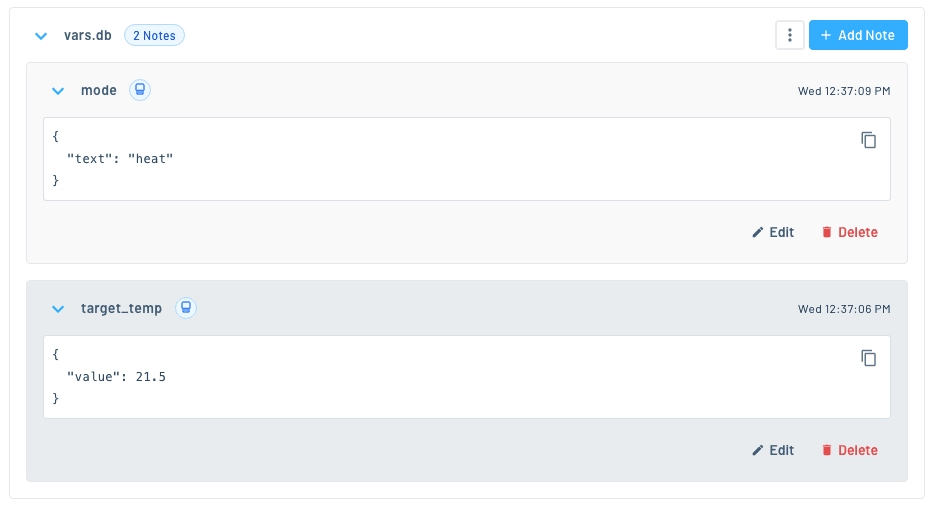
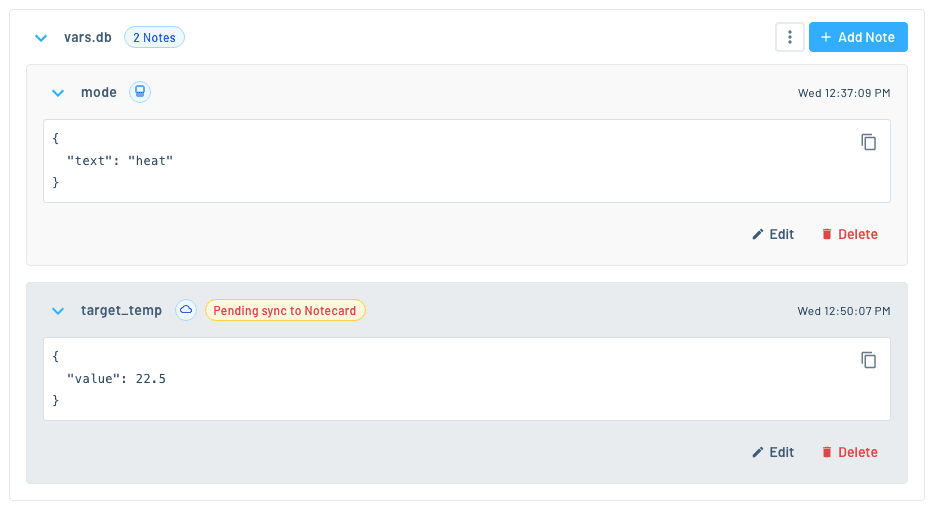
From here you can edit a Note's body directly, add or delete new Notes, and create new DB Notefiles. Edits made in Notehub are marked Pending sync to Notecard until the device's next sync, and each Note shows whether it was last updated by Notecard or by Notehub.
For example, the screenshot below shows the target_temp Note after an update
was made to its value, and before it was synchronized down to Notecard.
See Managing Notefiles in the Notehub walkthrough for a full tour of the Notefile explorer.
Changing State with the Notehub API
For a production dashboard or backend, use the
Notehub API to read and write the same Notes
programmatically. For example, the request below updates the thermostat’s
target temperature. Note that the body uses the value field, matching
how var.set stores numeric variables:
curl -X PUT
    -L 'https://api.notefile.net/v1/projects/<projectUID>/devices/<deviceUID>/notes/vars.db/target_temp'
    -H 'Authorization: Bearer <access_token>'
    -d '{"body": {"value": 22.5}}'
Similarly, this request updates one period of the thermostat’s schedule:
curl -X PUT
    -L 'https://api.notefile.net/v1/projects/<projectUID>/devices/<deviceUID>/notes/schedule.db/weekday-morning'
    -H 'Authorization: Bearer <access_token>'
    -d '{"body": {"start": "07:00", "temp": 20}}'
The updated Notes replicate to the Notecard on its next sync. If the change
needs to reach the device before its next scheduled inbound sync, adjust the
inbound period in hub.set,
or consider using the hub.set request’s
sync argument
so that new inbound data syncs to your device immediately.
Detecting Cloud Changes on the Device
Once a change syncs to the Notecard, oftentimes your host firmware needs to
take action.
The simplest check is a file.changes
request, which summarizes changed Notes across Notefiles. But to know exactly
which Notes changed since the firmware last looked, use a
change tracker
with note.changes:
{
  "req": "note.changes",
  "file": "schedule.db",
  "tracker": "host-schedule"
}J *req = notecard.newRequest("note.changes");
JAddStringToObject(req, "file", "schedule.db");
JAddStringToObject(req, "tracker", "host-schedule");
J *rsp = notecard.requestAndResponse(req);
J *notes = JGetObject(rsp, "notes");
// Iterate over the changed Notes and apply them.
notecard.deleteResponse(rsp);req = {"req": "note.changes"}
req["file"] = "schedule.db"
req["tracker"] = "host-schedule"
rsp = card.Transaction(req)
notes = rsp.get("notes", {})
# Iterate over the changed Notes and apply them.The first call with a new tracker returns all Notes in the Notefile; each subsequent call returns only the Notes that changed since the previous call:
{
 "changes": 1,
 "total": 4,
 "notes": {
  "weekday-morning": {
   "body": {
    "start": "07:00",
    "temp": 20
   },
   "time": 1754322910
  }
 }
}Deleted Notes are not reported unless you ask for them. Add
"deleted": true to the request to include deletions; each deleted Note is
then returned with a "deleted": true field of its own.
Polling note.changes works but is not battery efficient. If power usage
is a concern (for example in a battery-powered thermostat), you can use
a Notecard’s attention pin to interrupt the host when a watched Notefile
changes:
{
  "req": "card.attn",
  "mode": "arm,files",
  "files": ["vars.db", "schedule.db"]
}J *req = notecard.newRequest("card.attn");
JAddStringToObject(req, "mode", "arm,files");
J *files = JAddArrayToObject(req, "files");
JAddItemToArray(files, JCreateString("vars.db"));
JAddItemToArray(files, JCreateString("schedule.db"));
notecard.sendRequest(req);req = {"req": "card.attn"}
req["mode"] = "arm,files"
req["files"] = ["vars.db", "schedule.db"]
card.Transaction(req)With this workflow, when cloud changes sync down and modify one of the
watched Notefiles, the Notecard’s ATTN pin fires, the host wakes,
and a no-argument card.attn request reports which Notefile changed—at which point
the firmware reads the new
state with var.get or note.changes and applies it. For a complete guide
to attention-pin-driven designs, see the
Notecard Attention Guide.
Handling Conflicting Changes
Because both the device and the cloud can write to a DB Notefile, it's possible for both sides to change the same Note between two syncs. For example, someone might turn the thermostat's dial to 21°C while, before the next sync, someone else sets the target temperature to 23°C from a dashboard.
When this happens, the Notecard and Notehub resolve the conflict automatically. There is no error and nothing for your firmware or backend to handle. Both sides apply the same rules to pick a single winning copy of the Note, so after the next sync the device and the cloud always converge on the same value.
The rules, in order:
- The copy of the Note that has been changed the most times wins. Each Note keeps a count of its changes, so a Note that was edited twice on the device beats a Note that was edited once in Notehub, even if the Notehub edit happened later.
- If the change counts are equal, the copy with the most recent change wins.
- If the changes happened at the same time, Notehub’s copy wins.
In the example above, both sides changed the Note once, so the most recent change wins, and both the device and the dashboard end up showing 23°C.
The losing change is discarded. Only the winning copy is ever returned by
note.get or var.get, or shown in Notehub, and fields from the two bodies
are never merged, which
is another reason to keep independently changing values in separate Notes.
Deleting a Note follows the same rules as updating one: if one side deletes
a Note and the other side updates it, whichever change wins decides whether
the Note still exists.
noteThe "most recent change wins" rule depends on the Notecard knowing the current time, which it learns from the network shortly after it first connects. If a Notecard does not yet have the time, its changes carry no timestamp, and they lose to any change from Notehub that does.
In practice, conflicts are rare in a well-structured DB Notefile, as they only occur when the same Note changes on both sides between two syncs.
Storing Local-Only State with .dbx Notefiles
Finally, some device state has no business in the cloud. The thermostat's display brightness is a good example: the user might adjust it many times a day, it must survive a reboot, but it's not necessary to store in the cloud.
For this kind of state, you can use a DB Notefile with a .dbx extension.
A .dbx Notefile is local-only; it behaves exactly like any other DB
Notefile, but it never syncs, never triggers a sync, and never appears in
Notehub.
In effect, a .dbx Notefile turns the Notecard into a small persistent
key-value store for the host. This is especially useful for host MCUs with
limited (or no) spare non-volatile storage.
For example, the request below shows how to store a display brightness in a
local.dbx Notefile:
{
  "req": "var.set",
  "file": "local.dbx",
  "name": "brightness",
  "value": 80
}J *req = notecard.newRequest("var.set");
JAddStringToObject(req, "file", "local.dbx");
JAddStringToObject(req, "name", "brightness");
JAddNumberToObject(req, "value", 80);
notecard.sendRequest(req);req = {"req": "var.set"}
req["file"] = "local.dbx"
req["name"] = "brightness"
req["value"] = 80
card.Transaction(req)Summary
Pulling the whole thermostat design together, here's every value the product manages and the mechanism it uses:
| Value | Where it lives | Written by | Key requests |
|---|---|---|---|
| Temperature readings | data.qo | Device only | note.add |
| How often to report readings | Environment variable (reading_mins) | Cloud (Notehub) | env.get |
| Target temperature, operating mode | vars.db | Device and cloud | var.set, var.get, Notehub API |
| Weekly schedule | schedule.db | Device and cloud | note.update, note.get, note.delete, note.changes, Notehub API |
| Display brightness | local.dbx | Device only | var.set with file |
