Using Slack with Notehub
Notehub can post messages to Slack, making it easy to get device data and alerts in front of your team. There are two places you can do this.
- A Slack route forwards events to Slack as they arrive in Notehub. Use a route when you want a running feed of some or all of your events.
- A Slack notification on an alert monitor posts to Slack only when a monitor's condition is met — a device stops checking in, or a value in a Note crosses a threshold you define.
Both options ask for the same set of Slack values, so the setup below applies to either path. Configure your Slack app once, then jump to the section for the option you want.
 note
noteTo send messages to Slack you must have admin access to a Slack channel, and have created a Slack app. If you haven't built a Slack app before, you can start a new one here.
Creating a Slack App
Every Notehub-to-Slack connection posts as a Slack app, so start there. If you already have an app you want to use, skip ahead to Slack Configuration Fields.
-
Create a new app at api.slack.com/apps/new, choosing Blank app unless you have a manifest to work from.
-
Give the app a name your team will recognize in the channel (for example, "Notehub"), and select the workspace you want it to post into.
Once the app exists, decide how Notehub should authenticate to it. Notehub supports two mechanisms, and the choice determines which values you need to collect next.
-
(Recommended) A Webhook is the easiest way to interact with Slack. You create a webhook URL that can post to a single Slack channel, and Notehub needs nothing else.
-
A Bearer connection uses OAuth authentication to allow your Slack app to send messages. With this option you'll need to generate an OAuth token and add permissions to your app, but you'll be able to send Slack messages to different channels.
Slack Configuration Fields
Whether you're creating a route or adding a Slack notification to an alert monitor, Notehub presents the same block of Slack fields. This section explains what each one wants; the two sections that follow cover where to find that block and what surrounds it.
The first field is always Slack Route Type, which selects the authentication mechanism you chose above — Webhook or Bearer. The fields below it change depending on which one you pick.
Webhook Route Type
Complete these steps if you're using a Slack Route Type of Webhook.
-
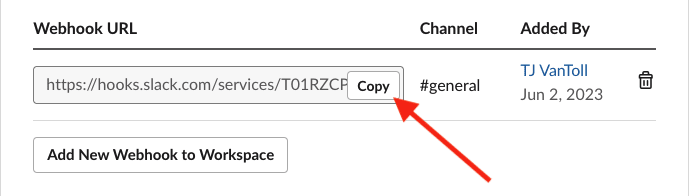
To find your Webhook URL, select your Slack app on api.slack.com/apps, select Incoming Webhooks in the menu, and enable the Activate Incoming Webhooks switch.
-
After you activate incoming webhooks, scroll down the same page and find the Add New Webhook to Workspace button. Click that button and complete the subsequent steps to generate a Webhook URL. Copy that URL and paste it into the Webhook URL field in Notehub.
Bearer Route Type
Complete these steps if you're using a Slack Route Type of Bearer.
-
Provide the Channel ID you would like to send your messages to. The easiest way to get your channel ID is to right click on a channel within Slack, select Copy, and then Copy Link. The channel is in the URL you just copied, and is in the format
CXXXXXXXXXX.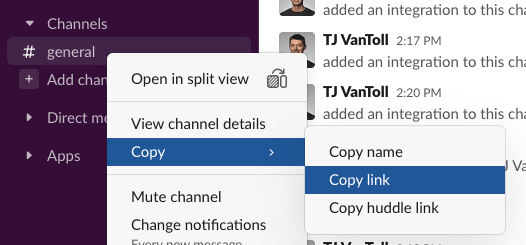
-
To generate a Bearer Token, select your Slack app and click the OAuth & Permissions menu. Scroll down and find the OAuth Tokens for Your Workspace heading. Click the Install to Workspace button and complete the subsequent steps. When you're done use the Copy button to get the token you need for Notehub.
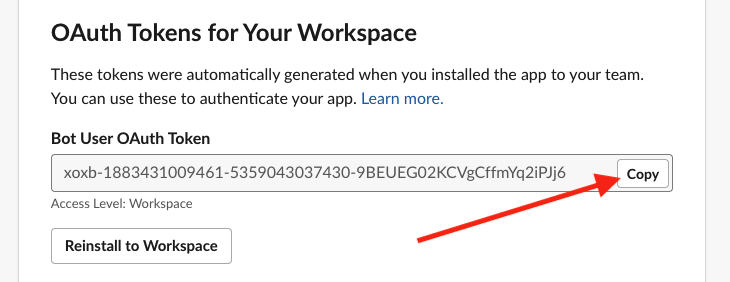
In order to successfully use your token to post to a channel you'll need to complete a few additional steps.
-
While still on the same OAuth & Permissions settings page, scroll down to the Scopes section, click the Add an OAuth Scope button, and add the
chat:writepermission. You'll likely be prompted to restart your app for the permission change to take effect. -
In your Slack client, you need to invite your app to every channel you intend to send messages to. The easiest way to do this is with the
/invitecommand.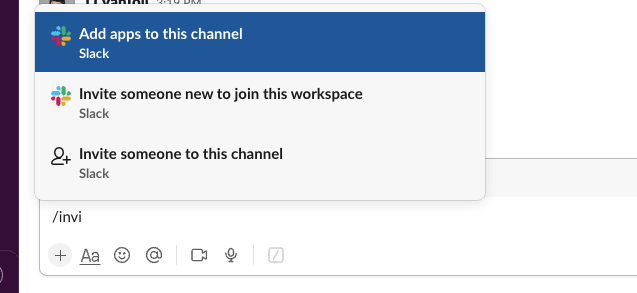 note
noteBearer connections post messages using Slack's
chat.postMessageAPI, which only delivers to channels the app is a member of. If you skip this invite step, messages will fail to post even when the token and channel ID are correct.
Additional Fields
Both Slack route types finish with the same pair of fields.
For Message Type you can select either Text or Blocks. Selecting Text allows you to provide simple strings. Use Blocks if you need to generate richer Slack messages, and use the Slack Block Kit Builder to generate the syntax you need.
noteFor the Blocks field you can paste either the entire JSON payload produced
by the Block Kit Builder (the object that contains a top-level "blocks" key)
or just the value of the blocks array itself—Notehub accepts both forms.
You can use
placeholder variables
to include event-specific information in your messages. If you're configuring
Slack for the first time, try using [.body] as Text, as it sends your
Note's body as your message.
Using Slack in a Notehub Route
A Slack route forwards events to Slack as Notehub receives them. Use this when you want an ongoing feed of the Notes your devices send.
-
Open your Notehub project, head to the Routes tab, click the Create Route button, and then find the Slack option. Click Select to get started.

-
Give the route a Route name, which controls how the route is identified within Notehub.
-
Fill in the Slack fields — Slack Route Type, the webhook or bearer values it asks for, and Message Type. See Slack Configuration Fields above for what each one needs.
-
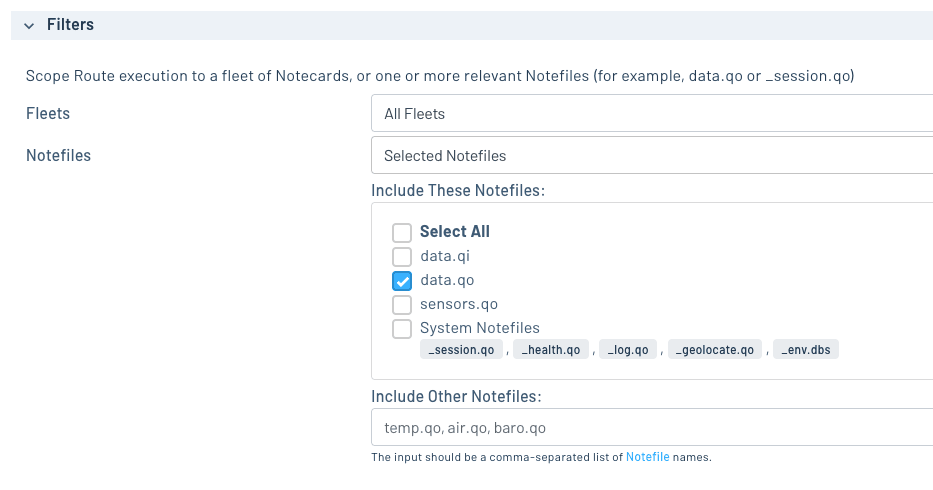
Scroll to the Filters section, set the Notefiles dropdown to Selected Notefiles, and select the Notefile you want to use this route for.
-
When you're all set, click the Create Route button to save your new route.
Using Slack in a Notehub Alert Monitor
An alert monitor posts to Slack only when the condition you define is met, rather than on every event. Notehub supports two monitor sources, and both can notify Slack.
- A Heartbeat monitor fires when a device hasn't communicated with Notehub for a period of time you set.
- An Events monitor fires when a value inside the Notes your devices send crosses a threshold.
Follow Creating a Heartbeat Monitor or Creating an Event Monitor to set up the monitor itself, then configure Slack in its Notification section.
-
Under Notification, set Notification Type to Slack.
-
Fill in the Slack fields that appear: Slack Route Type, the webhook or bearer values it asks for, and Message Type. These are the same fields a route uses, so see Slack Configuration Fields above for what each one needs.
-
Click the Save Monitor button to save your changes.
noteA monitor's Slack settings live on the monitor itself — they are not a reference to a route you created on the Routes tab. If you want the same channel used by both a route and a monitor, enter the webhook URL (or token and channel) in each one.
 tip
tipMonitors, including their Slack notification settings, can also be created, updated, and deleted programmatically through the Monitor API.
Testing Your Slack Configuration
With your route or monitor saved you're now ready to test it out. The easiest way to make sure everything is working is by sending a Note using the Notecard's In-Browser Terminal.
-
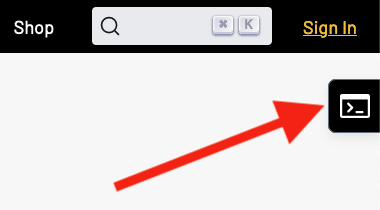
Use the In-Browser Terminal to connect to your Notecard via USB. (If you're unsure how to do this check out the Notecard quickstart.)
-
Once connected, associate your Notecard with a Notehub project (if it isn't already).
{ "req": "hub.set", "product": "com.example.yourname:yourproject" } -
Next, run the command below to queue a Note onto the
data.qoNotefile. You may wish to change thefileandbodyof your command, depending on how you configured your route or monitor.{ "req": "note.add", "file": "data.qo", "body": { "temp": 22 } } -
Finally, run the
hub.syncrequest to send this data to your Notehub project.{ "req": "hub.sync" }
When the data reaches your Notehub project, Notehub will post to Slack. And if all
goes well, you should see your message appear in your channel. For example, if you
use a Text of [.body], you should see a message that looks like this.

noteA route posts to Slack for every event that clears its filters, so the Note above is enough to see a message. A monitor only posts when its condition is met, so testing one takes a little more:
- For an Events monitor, send a
bodyvalue that actually crosses the threshold you configured — atempof22won't trigger a monitor watching for readings above80. - For a Heartbeat monitor, stop syncing and wait out the inactivity period you configured. Lower that period temporarily if you don't want to wait.
Alert notifications are also logged under the Alerts tab, which is a quick way to confirm a monitor fired even if the Slack message didn't arrive. See Alert Logging.
tipTo debug a route or inspect the exact request Notehub sends to your third-party service, open an event in Notehub, click Route as cURL, and choose the appropriate HTTP-based route. The modal shows a cURL command that reproduces the same request Notehub makes, with secrets (API keys, passwords, etc.) replaced by placeholders.

