Notecard for Skylo Quickstart
Introduction
This tutorial should take approximately 40-50 minutes to complete.
Watch a video of this tutorial
In this guide you'll learn how to use Notecard for Skylo, our all-in-one solution that offers cellular, WiFi, and satellite connectivity in one System-on-Module.
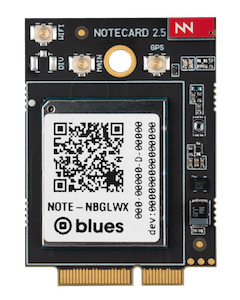
Throughout this tutorial you'll learn how Notecard for Skylo works and how it manages fallback between connectivity protocols. Once you have the basics down, you'll take your device outdoors and send your first data over a satellite connection.
By the end of this tutorial you'll have a basic understanding of the process for building connected satellite products with Blues.
Before You Begin
To complete this guide you must have access to the following:
-
A computer with an available USB port.
-
A browser that supports the Web Serial API, like Chrome, Microsoft Edge, or Firefox.
-
A free Notehub.io account.
-
A Skylo-certified external LTE antenna (i.e. the large flexible antenna that ships with Notecard for Skylo).
-
An external GPS/GNSS antenna (i.e. the small flexible antenna that ships with Notecard for Skylo).
-
A Notecarrier.
-
Outdoor access. To transmit, Notecard for Skylo must have a clear view of the sky, away from buildings and overhead tree cover. You can complete all setup indoors—we'll let you know when it's time to go outside.
Setup
Before you begin the tutorial, let's take a few minutes to make sure your hardware is set up correctly. In this section, you’ll connect your Notecard to a Notecarrier, attach required antennas, and verify that your device is running a supported firmware version.
Connect Notecarrier
If you haven’t already, insert your Notecard for Skylo into a Blues Notecarrier. The image below shows a Notecarrier CX, but you can use any Blues Notecarrier to complete this tutorial.
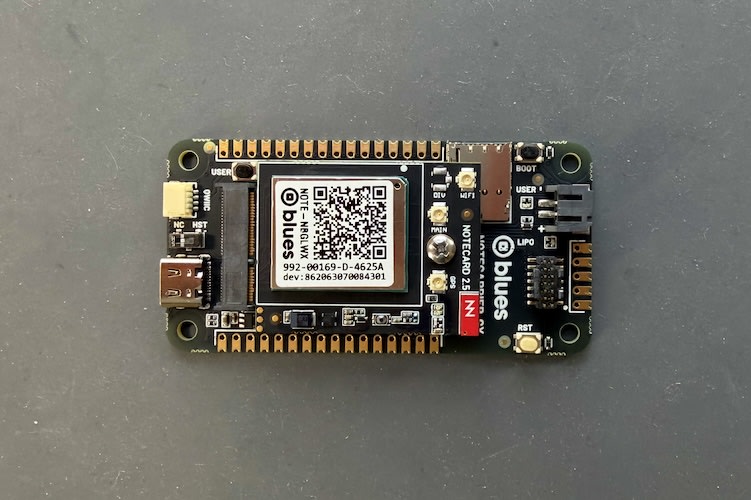
Using a Notecarrier provides USB access to your Notecard, which you’ll need throughout this guide. Make sure your Notecard is fully seated in the M.2 connector and secured with the mounting screw. Tighten the screw just enough to hold the Notecard in place and avoid overtightening.
Connect Antennas
Next, attach the two included flexible antennas to the u.FL connectors on your Notecard for Skylo.
-
Connect the larger antenna to the
MAINconnector. This antenna covers a wide frequency range and is used for both satellite and cellular communications. -
Connect the smaller antenna to the
GPSconnector. This antenna is tuned for GPS/GNSS reception.
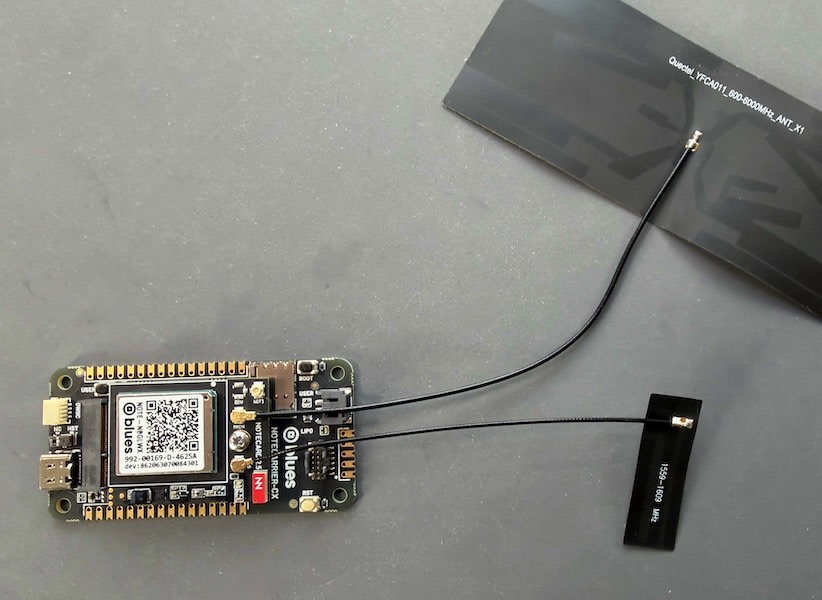
Make sure both antennas are firmly connected. The u.FL connectors snap into place when seated correctly.
Check Firmware Version
With your hardware attached, let's next ensure your Notecard for Skylo is using a supported firmware version.
-
Connect a USB cable from your Notecarrier's USB port to your computer's USB port.
-
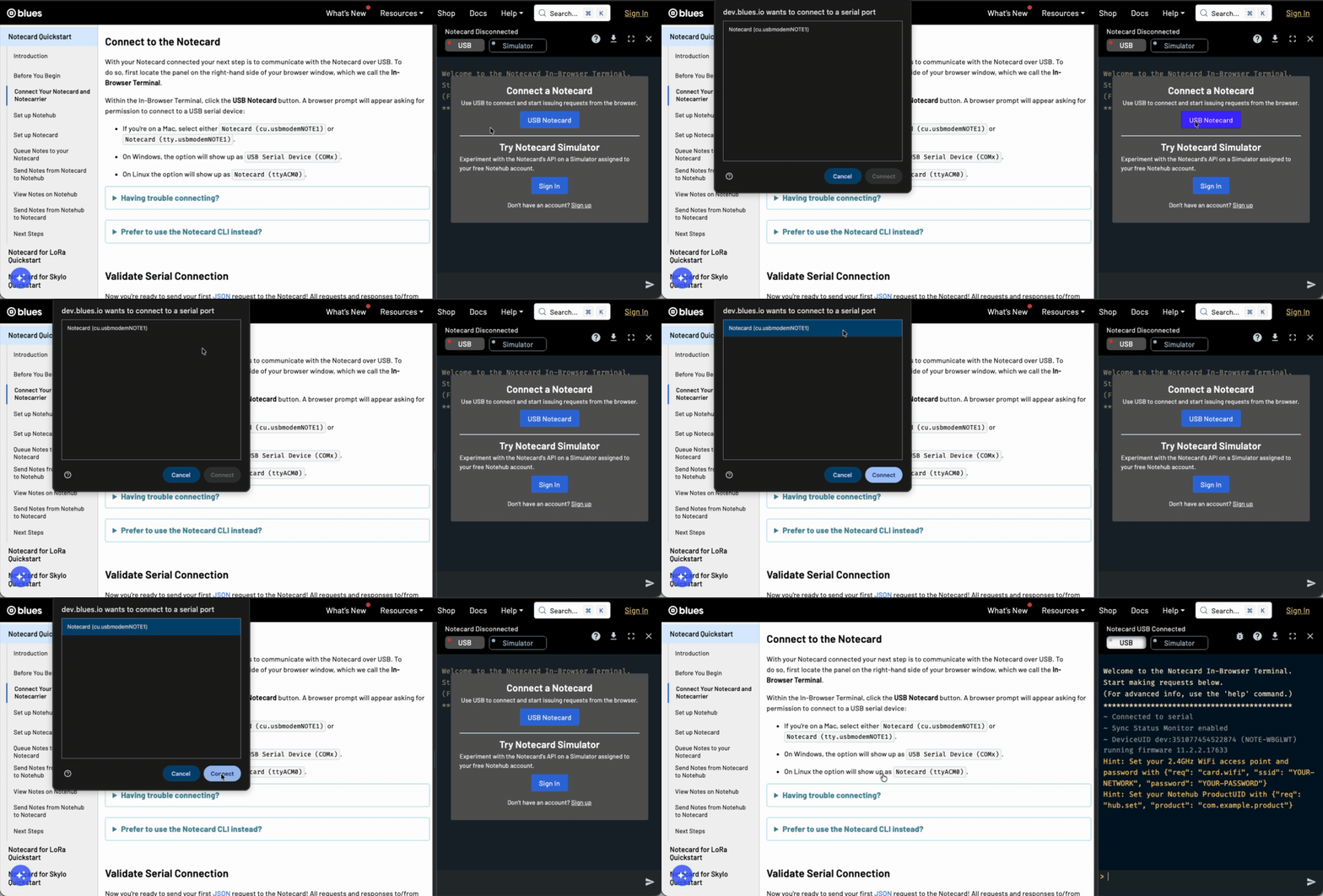
Locate the panel on the right-hand side of your browser window, which we call the In-Browser Terminal. Within the In-Browser Terminal, click the USB Notecard button.
-
Run a
{"req":"card.version"}request and look at theversionthat comes back.>{"req":"card.version"}{"version":"notecard-11.1.1.17494, ... } -
If your Notecard's firmware is a version >=
10.1.1you're all set. If not, use thefirmware install latestcommand to update your device.firmware install latest
Now that your hardware is set up, let’s explore how Notecard handles connectivity when multiple transport methods are available.
 warning
The following sections of this tutorial assume you are familiar with the basics of how Notecard and Notehub work. If you're new to Blues, you may wish to pause here and complete the Notecard Quickstart before continuing.
Understanding NTN Transport Mode
Notecard transport modes (via the card.transport API) let developers configure which Radio Access Technology (RAT) a Notecard should use, and enable a Notecard to fallback from one RAT to another, such as falling back from WiFi to cellular.
For satellite, Notecard also supports a transport mode called NTN (Non-Terrestrial Networks), the 3GPP standard for extending cellular networks over satellite, provided by Skylo, our connectivity partner for Notecard for Skylo.
Notecard's NTN mode is a byte-constrained mode that attempts to send as little data as possible over the network. NTN mode is compatible with all variants of Notecard Cellular, Notecard Cell+WiFi, Notecard WiFi, and Notecard for Skylo.
The NTN-related card.transport method arguments are as follows:
-
{"req":"card.transport","method":"ntn"}to always use NTN for network communications (useful for testing, but not recommended for production deployments). -
{"req":"card.transport","method":"wifi-ntn"}to prefer WiFi and fallback to NTN. -
{"req":"card.transport","method":"cell-ntn"}to prefer cellular and fallback to NTN -
{"req":"card.transport","method":"wifi-cell-ntn"}to prefer WiFi, then fallback to cellular, and lastly to NTN. -
{"req":"card.transport","method":"-"}to reset the transport mode to the device default.
Let's start the hands-on portion of this tutorial by looking at how to use these modes on a Notecard.
warningFor a Note synced with Starnote for Skylo, satellite packets have a minimum billable size of 50 bytes and a maximum supported size of 256 bytes. Packets smaller than 50 bytes are billed as 50 bytes. Packets exceeding 256 bytes are not transmitted, are ignored by the satellite network, and result in the Note being deleted. Billing is based on the packet size.
Setting Up For NTN
Before your Notecard can communicate over Skylo's Non-Terrestrial Network (NTN), there are a few setup steps to complete. In this section you'll learn how Notecard selects its transport method, and the prerequisites required before enabling NTN—including creating compact templates and retrieving a valid GPS/GNSS location.
Checking Your Device's Transport Method
By default, Notecard for Skylo uses WiFi as its primary connection, falling
back to cellular. You can verify this by connecting your Notecard for Skylo
to the In-Browser Terminal and running a card.transport request.
{"req":"card.transport"}{"method":"wifi-cell"}In order to test with NTN you'll need to switch to a transport
method that uses NTN as a fallback ("wifi-ntn", "cell-ntn",
"wifi-cell-ntn"), or a method that uses NTN alone ("ntn").
Don't do this quite yet.
In production scenarios you will likely want to use one of the fallback methods, as they allow you prioritize the fastest and cheapest protocols first, and let Notecard handle fallback scenarios as your device leaves WiFi or cellular coverage.
 note
noteYou can read about the exact algorithm Notecard uses to fallback to alternate radio access technologies in Connection Retry and Fallback Behaviors.
However, when testing a device's NTN connection for the first time, it can be
helpful to explicitly set card.transport to "ntn", which tells Notecard
to use NTN without waiting for other transport methods to time out. You'll do
this in the next section, but again don't do this quite yet, as there are
two prerequisites to complete first.
Prerequisite #1: Create and Sync Compact Templates
All NTN communications require the use of templated Notefiles and templated environment variables to help reduce usage of satellite data.
For example, here's a sample Notefile template you could use for NTN communication.
{
  "req": "note.template",
  "file": "sat.qo",
  "format": "compact",
  "port": 55,
  "body": {"temp": 14.1, "humidity": 14.1}
}
Let's break down this request in detail.
"file": "sat.qo"
When you use the note.template request you define the format for a single
Notefile. This file argument gives the Notefile a name of sat.qo, where
the .qo stands for "outbound queue".
Learn more about Notefile naming conventions.
"port": 55
When using NTN every byte is important. The port argument is a unique integer
that refers to a single Notefile. Providing this value allows Notecard to
send a numerical reference to the Notefile over the air, rather than the full
Notefile name.
"format":"compact"
This is a required field for all Notefiles used over NTN. The "compact" value
tells Notecard to send a minimal amount of metadata with the Note.
You can view a full list of fields this affects in
Creating Compact Templates.
"body":{"temp":14.1,"humid":14.1}}
The body arguments tells Notecard about the contents of each Note in the
Notefile, as well as their data types. These values tell Notecard to expect
two fields, "temp" and "humid", each of which have a value in 14.1 format,
which represents a 4-byte floating-point number. When creating your own templates
you'll want to to refer to
Understanding Template Data Types,
which lists all data formats Notecard supports.
When using an NTN transport you must create a Notefile template for every inbound and outbound Notefile you use. Similarly, you must create an environment variable template for every environment variable you intend to receive over an NTN connection.
For our tutorial, let's create one simple template we can use for testing.
-
With your Notecard for Skylo still connected to the In-Browser Terminal, run the following request to create a new
sat.qotemplate.{ "req":"note.template", "file":"sat.qo", "format":"compact", "port":55, "body":{"temp":14.1,"humidity":14.1} } -
Next, use the
hub.setrequest below to instruct your Notecard to only connect to Notehub during explicithub.syncrequests, which will help us manage satellite data usage in the next session.{"req":"hub.set","mode":"minimum"} -
If you haven't already, also make sure you've used the
hub.setrequest to associate your Notecard with a valid Notehub ProductUID.{"req":"hub.set","product":"com.your.domain:product"} -
Next, run a
hub.syncrequest. It is required that Notecard first syncs with Notehub over a non-NTN connection to copy all of your generated templates to your Notehub project before they may be used over NTN.{"req":"hub.sync"} -
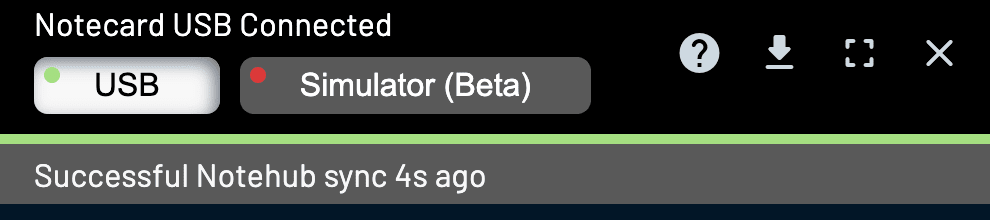
Watch the progress bar in the In-Browser Terminal for updates on the syncing process.
warningYou must wait for your Notecard to complete a full sync with Notehub before you use NTN mode.
Notecard for Skylo uses a narrowband cellular connection, so cellular syncs may take longer than you're accustomed to if you've previously used midband or wideband Notecards. If your device does not connect after several minutes, see Diagnosing Cellular Connectivity Issues.
-
With the sync complete, let's make sure your Notefile template is working correctly. To do so, add a Note to your templated Notefile using the request below.
{ "req":"note.add", "file":"sat.qo", "body":{"temp":12.3,"humidity":45.6} } -
And then finally, send a
hub.syncrequest to sync this new Note to your Notehub project.{"req":"hub.sync"} -
When this sync completes, visit your Notehub project's Events list and ensure the new Note made it to Notehub successfully. Hover over the
sat.qoevent's transport (see screenshot below), and ensure it shows Cellular, indicating this event was sent over a cellular transport.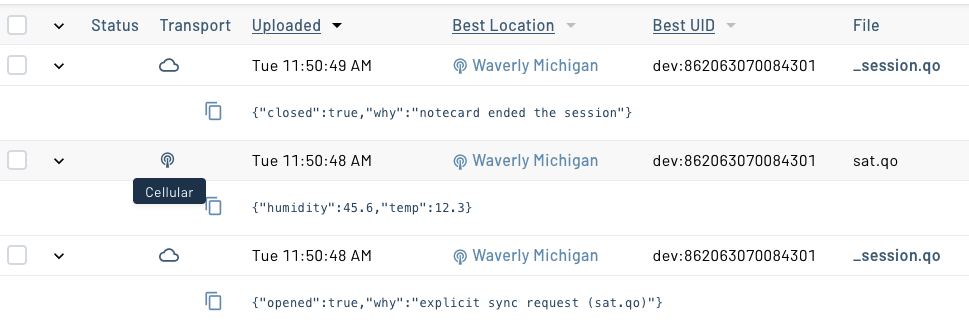
Prerequisite #2: Provide a GPS/GNSS Location
As a second prerequisite, Notecard requires a GPS/GNSS location before communicating with Skylo's satellite network. To retrieve a location you have two options:
- Enable Notecard's GPS/GNSS module and wait for it to retrieve a location.
- Provide a known, fixed location for testing.
For deployed devices we strongly recommend enabling Notecard's GPS/GNSS module. Using Notecard's GPS allows devices to determine their own location without being fixed to specific coordinates, and it also enables detection of unexpected movement—which can help identify potential theft or vandalism.
For testing scenarios, however, we recommend providing a fixed location to avoid the time-consuming process of acquiring a GPS fix when first testing an NTN connection.
Both options are presented below. Complete one of following options before continuing.
Option #1: Enable Notecard's GPS/GNSS (recommended for production)
Notecard has an onboard GPS/GNSS module that is off by default, but you
can enable it with the
card.location.mode
request. When invoking
card.location.mode you must provide a seconds value, which tells Notecard
how often it should attempt to retrieve a new location.
The example below uses a seconds of 86400, which tells Notecard to do a
daily GPS/GNSS lookup.
{
  "req":"card.location.mode",
  "mode": "periodic",
  "seconds": 86400
}
One important note: once Notecard has retrieved a location, it won't try to get another one unless it detects movement. It uses its onboard accelerometer to tell whether the device has moved, so it doesn’t waste power performing unnecessary location lookups.
You can learn more about how Notecard's GPS/GNSS module works in Time and Location Requests.
Option #2: Provide a fixed location (recommended for initial testing)
Alternatively, during testing or development you can specify a "fixed" set of GPS coordinates for your Notecard. When using a fixed location, Notecard will skip the time-consuming step of using its GPS/GNSS module to ascertain its location before attempting to connect via satellite.
To use a fixed location complete the following steps.
-
Look up the precise latitude and longitude you want to use.
-
Run the following
card.location.modeargument on your Notecard, substituting thelatandlonarguments with your own values.{ "req": "card.location.mode", "mode": "fixed", "lat": 11.11, "lon": 22.22 } -
And then run the
ntn.gpsrequest below to tell Notecard to use its fixed location for NTN purposes.{ "req": "ntn.gps", "on": true }
Sending Data Over Satellite
Now that you have your location retrieved and your templates uploaded, you're ready to switch to using an NTN transport and to send your first data over a satellite connection.
-
With your Notecard still connected to the In-Browser Terminal, issue the following command to enable your Notecard's trace mode. Trace mode will let you monitor debug logs from Notecard as it attempts to make a satellite connection.
trace +req -
With trace mode enabled, next switch your Notecard to NTN mode using the following request.
{"req":"card.transport","method":"ntn"} -
Next, queue a new Note onto your Notecard using the
note.addrequest.{ "req":"note.add", "file":"sat.qo", "body":{"temp":45.6,"humidity":78.9} } -
After that, you need to take your device to a location that has a clear view of the sky, away from buildings and overhead tree cover. Skylo's GEO satellites sit above the equator, so your view of the southern sky (from the northern hemisphere) or northern sky (from the southern hemisphere) is especially important.
If you are testing outdoors you will also need to bring a laptop that is capable of connecting to your Notecard, sending a
hub.syncrequest, and watching the serial logs. Depending on your setup this might be a bit of a hassle, but remember—you're about to send data to space! It'll all be worth it. -
When you're ready to go, trigger an outbound sync with a
{"req":"hub.sync","out":true}request. This time, because you have yourcard.transportset to use an NTN connection, your Notecard will attempt to send your data using Skylo's satellite constellation.{"req":"hub.sync","out":true} -
Watch the serial communications in the In-Browser Terminal, as it gives detailed information on steps Notecard takes to connect to satellites and send your data. The process may take a few minutes, but when you see an
ntn.uplinkcommand you'll know everything worked! 🛰️S07:00.22 sync: sync triggered by explicit sync request; GPS; NTN outbound S07:00.22 sync: work: begin (anything pending) {sync-begin} S07:00.29 sync: work to be done: S07:00.30 upload sat.qo S07:00.32 ntn: enqueueing 9-byte note from sat.qo (port 55) S07:00.32 sync: work: upload sat.qo (1 changes) {sync-get-local-changes} S07:00.32 purge sat.qo: S07:00.33 1 notes (0 stable, 0 queued, 1 tombstones) S07:00.33 -> 0 notes (0 stable, 0 queued, 0 tombstones) S07:00.35 sync: work to be done: S07:00.35 upload sat.qo S07:00.36 deleting /data/sat-qo.000 S07:00.48 sync: work: completed {sync-end} S07:00.49 sync: advancing last sync time from 19:04:00Z to 19:09:49Z S07:00.65 ntn: adding downlink request note into packet (6/254) S07:00.65 ntn: moved 9-byte note (port 55) into packet (17/254) S07:00.65 packet: sending 17 bytes (encoded as 19 bytes on-air) S07:00.78 ntn: sent 17-byte packet containing 2 notes -
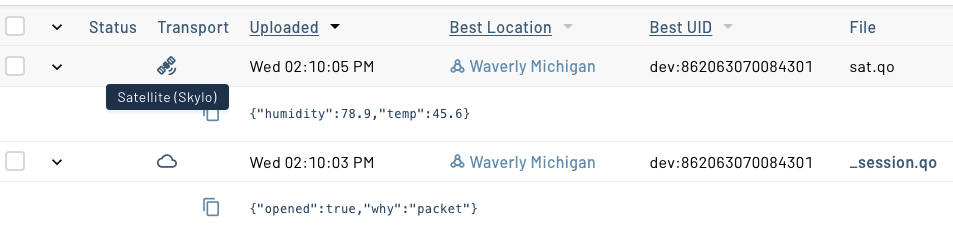
Return to the Events page in your Notehub project. You should see your data listed in a new Event that has a satellite transport.
Having trouble connecting?
Satellite communications are notoriously difficult to get right, due to all of the variables involved. Here are some of the more common issues to be aware of:
-
Give it time. It can take multiple minutes for Notecard for Skylo to find and communicate with Skylo's GEO satellites that sit above the equator. Double check that your antenna is free from obstructions and has a clear view of the southern sky (from the northern hemisphere) or northern sky (from the southern hemisphere).
-
Make sure you have successfully synced any and all templates with Notehub over cellular or WiFi before attempting NTN communications with Notecard for Skylo.
Congratulations! You just sent your first data to space using Notecard. Before we wrap up let's reset a few things.
-
First, be sure to disable trace mode by sending the
trace offcommand in the In-Browser Terminal.trace off -
Next, if you used hardcoded GPS coordinates for your device's location during testing, you'll likely want to reset the
ntn.gpsrequest so that you can use a GPS location from Notecard moving forward.{"req":"ntn.gps","off":true} -
And lastly, set your Notecard's transport method to an appropriate value for your product, so you don't send any more data over satellite until you're ready. For example:
{"req":"card.transport","method":"wifi-cell-ntn"}
Next Steps
The power of Notecard for Skylo is just how easy it makes satellite connectivity, and in this tutorial you saw this ease of use in action.
You learned how Notecard transport methods work, how to use the Notecard's NTN mode, and how to send your first data using satellite connectivity.
Now that you know the basics, your next step is to review the Satellite Best Practices guide to better understand how to build a product around Notecard for Skylo. At any time, if you find yourself stuck, please reach out on the community forum.
