Loading...
Notecard Disconnected
Having trouble connecting?

Try changing your USB cable as some cables do not support transferring data. If that does not solve your problem, contact us at support@blues.com and we will get you set up with another tool to communicate with the Notecard.

Advanced Usage

The help command gives more info.

Connect a Notecard
Use USB to connect and start issuing requests from the browser.
Try Notecard Simulator
Experiment with the Notecard's API on a Simulator assigned to your free Notehub account.

Don't have an account? Sign up

Meet Notecarrier CX - A Combined Notecarrier + STM32L4 Host MCU in One Board

Blues Developers
What’s New
Resources
Blog
Technical articles for developers
Newsletter
The monthly Blues developer newsletter
Terminal
Connect to a Notecard in your browser
Developer Certification
Get certified on wireless connectivity with Blues
Webinars
Listing of Blues technical webinars
Blues.comNotehub.io
Shop
Docs
Button IconHelp
Support DocsNotehub StatusVisit our Forum
Button IconSign In
Docs Home
What’s New
Resources
Blog
Technical articles for developers
Newsletter
The monthly Blues developer newsletter
Terminal
Connect to a Notecard in your browser
Developer Certification
Get certified on wireless connectivity with Blues
Webinars
Listing of Blues technical webinars
Blues.comNotehub.io
Shop
Docs
Support
Troubleshooting Notecard
Diagnosing Cellular Connectivity Issues
Diagnosing GPS Issues
Using Notecard Trace Mode
Understanding Notecard Penalty Boxes
Connection Retry and Fallback Behaviors
Notecard Error and Status Codes
Recovering a Bricked Notecard
Frequently Asked Questions
homechevron_rightDocschevron_rightSupportchevron_rightRecovering a Bricked Notecard

Recovering a Bricked Notecard

In the event the wrong type of firmware was inadvertently uploaded to your Notecard, you may need to manually recover the "bricked" Notecard using a Notecarrier A or Notecarrier F.

Recovering a Notecard with Notecarrier A

  1. Download the appropriate firmware binary for your specific Notecard.
  2. Plug the Notecarrier A into your PC via a micro USB cable.
  3. Add a jumper wire between the unmarked BOOT pin and VIO on the Notecarrier A (see image below for location of BOOT).
  4. Add another jumper wire between RST and GND.
  5. Remove the RST/GND jumper.
  6. Remove the BOOT/VIO jumper.
  7. The Notecard will now be in its bootloader, so you can follow instructions provided to manually update the firmware.

recovering notecard with notecarrier a

Recovering a Notecard with Notecarrier F

  1. If there is a host MCU in the Feather socket, remove it.
  2. Download the appropriate firmware binary for your specific Notecard.
  3. Plug the Notecarrier F into your PC via a micro USB cable.
  4. Add a jumper wire between N_BOOT and N_VIO.
  5. Press the small reset button next to the Notecard (see image below).
  6. Remove the BOOT/VIO jumper.
  7. The Notecard will now be in its bootloader, so you can follow instructions provided to manually update the firmware.
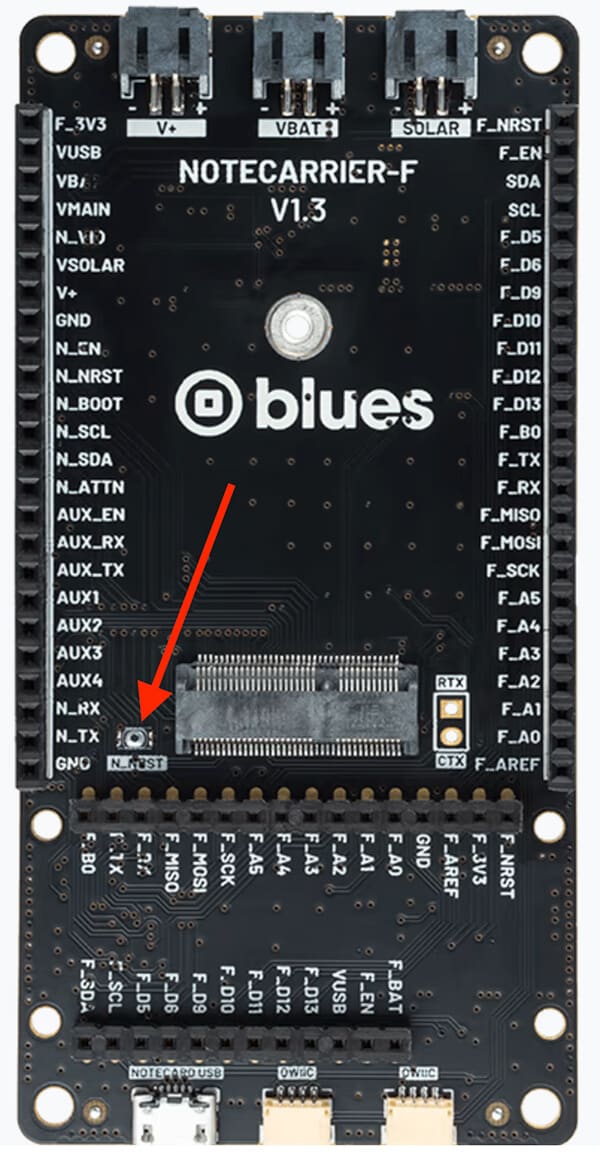
recovering notecard with notecarrier f

Revision History

AuthorDateSummary
Rob Lauer29 MAY 2024Initial Publication
Can we improve this page? Send us feedback
© 2026 Blues Inc.
© 2026 Blues Inc.
TermsPrivacy