Recovering a Bricked Notecard
If the wrong type of firmware was inadvertently uploaded to your Notecard, or a firmware update was interrupted before it finished, you may need to manually recover the "bricked" Notecard using a Notecarrier.
Every recovery procedure below works the same way: it forces Notecard into its
bootloader by holding BOOT (pin 65) at VIO while Notecard is reset, then
releasing NRST (pin 67) before releasing BOOT. The bootloader resides in the
STM32's read-only system memory and cannot be erased, so these steps work
regardless of what was previously written to Notecard's flash memory. Most Blues
Notecarriers expose the BOOT pin for this exact purpose.
 note
noteThese procedures apply to Notecard Cellular, Notecard Cell+WiFi, Notecard WiFi v1, and Notecard for Skylo.
 warning
These procedures cannot recover a Notecard that was erased using the "Full chip erase" option in STM32CubeProgrammer. That option removes factory provisioning data in addition to firmware, and reflashing a firmware binary does not restore it.
- Recovering a Notecard with Notecarrier A
- Recovering a Notecard with Notecarrier F
- Recovering a Notecard with Other Carrier Boards
Recovering a Notecard with Notecarrier A
- Download the appropriate firmware binary for your specific Notecard.
- Plug the Notecarrier A into your PC — micro USB on v2.0, USB-C on v2.3.
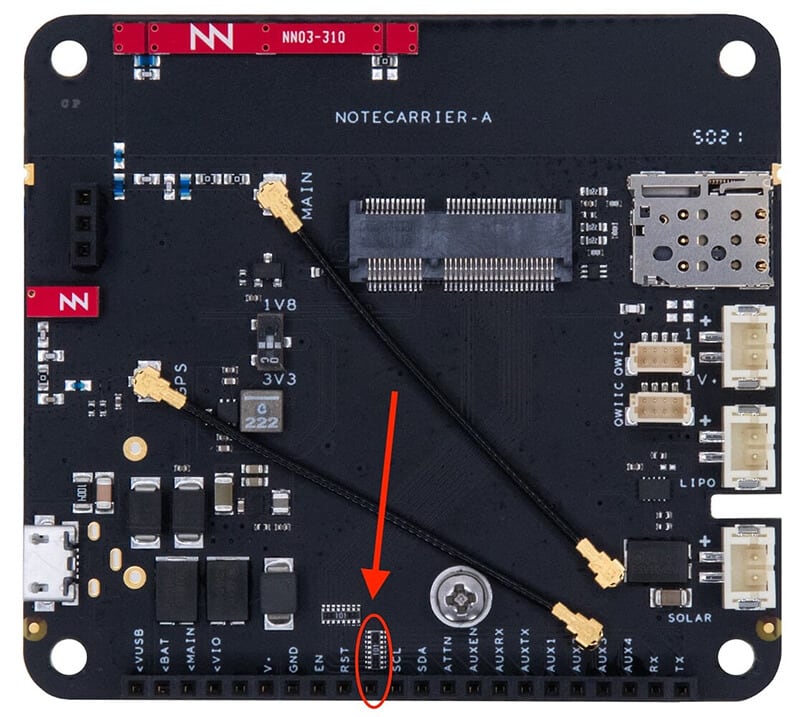
- Add a jumper wire between the
BOOTpin (pin 10 of the 22-pin header) andVIO(pin 4 of the same header).BOOTis unlabeled on Notecarrier A v2.0 and earlier, so use the image below to locate it. - Add another jumper wire between
RSTandVIO. - Remove the
RST/VIOjumper. - Remove the
BOOT/VIOjumper. - Notecard is now in its bootloader, so you can flash a firmware binary using
STM32CubeProgrammer,
following the branch of those instructions that matches your Notecard. Skip
the
bootloadercommand, as the steps above have already placed Notecard in its bootloader.
Recovering a Notecard with Notecarrier F
- If there is a host MCU in the Feather socket, remove it.
- Download the appropriate firmware binary for your specific Notecard.
- Plug the Notecarrier F into your PC with a USB cable.
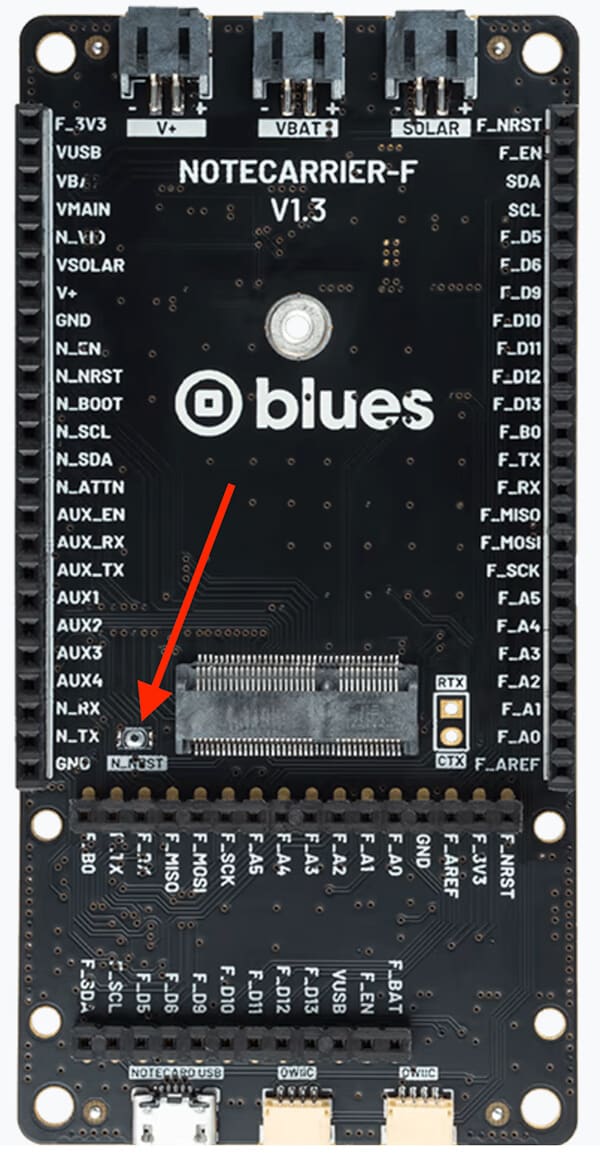
- Add a jumper wire between
N_BOOTandN_VIO. - Press the small reset button labeled
N_NRST, next to the Notecard socket (see image below). - Remove the
N_BOOT/N_VIOjumper. - Notecard is now in its bootloader, so you can flash a firmware binary using
STM32CubeProgrammer,
following the branch of those instructions that matches your Notecard. Skip
the
bootloadercommand, as the steps above have already placed Notecard in its bootloader.
Recovering a Notecard with Other Carrier Boards
If you're using another Blues Notecarrier, or a custom carrier board that routes
BOOT (pin 65), NRST (pin 67), and the USB signals to accessible test points,
you can recover a Notecard as well.
Notecarrier X, XI, XM, and XS expose Notecard's pins on a 16-pin header, with
VIO on pin 4, BOOT on pin 5, and NRST on pin 6.
warningThe same 16-pin header carries a second pin silkscreened BOOT, at pin 13,
grouped under an ALT DFU label alongside NRST at pin 12. Those two are
Notecard's Outboard DFU outputs — signals Notecard drives into your external
host MCU — and jumpering them will not put Notecard in its bootloader. Use pin
5, the one next to VIO on pin 4.
Two carriers cannot perform Notecard recovery:
- Notecarrier CX does not route Notecard's
BOOT(pin 65) orNRST(pin 67). The header pin labeledBOOTon Notecarrier CX selects the bootloader of the Notecarrier CX’s own host MCU. - Notecarrier Pi does not route Notecard's
NRST(pin 67).
To recover a Notecard on any other carrier that does route these pins:
- Download the appropriate firmware binary for your specific Notecard.
- Connect your carrier board to your PC so the Notecard enumerates over USB.
- Connect
BOOTtoVIO. - Momentarily connect
NRSTtoGND, then disconnect it. - Disconnect
BOOTfromVIO. - Notecard is now in its bootloader, so you can flash a firmware binary using
STM32CubeProgrammer,
following the branch of those instructions that matches your Notecard. Skip
the
bootloadercommand, as the steps above have already placed Notecard in its bootloader.
