Diagnosing GPS Issues
All variants of Notecard Cellular and Notecard Cell+WiFi include a GPS/GNSS module for gathering location data in outdoor settings. This guide is meant to help diagnose and resolve some of the most common issues users encounter when building location-aware applications.
- GPS Fix Checklist
- Avoid Simultaneous Usage of Cellular and GPS
- Verify Antenna Connection and Device Placement
- Other Issues and Potential Solutions
GPS Fix Checklist
If Notecard never reports a GPS/GNSS location work through the requests below in order first to rule out the most common causes.
1. Confirm the Notecard has a GPS module
{"req":"card.version"}Verify the response includes "gps": true. Not every Notecard SKU includes a
GPS/GNSS module — see
Supported Features by Notecard SKU.
2. Confirm an initial Notehub sync has completed
{"req":"card.status"}
{"req":"card.time"}
In periodic mode, Notecard will not enable its GPS module until it has
completed at least one sync with Notehub and has a valid time. If card.time
returns an error, make sure you have connectivity first.
3. Confirm GPS mode is actually active
{"req":"card.location.mode"}Check two things in the response:
modeisperiodicorcontinuous.secondsis present and non-zero.
4. Check for environment variable overrides
The _gps_mode, _gps_secs, _loc, _lat, and _lon
reserved environment variables
take precedence over anything set locally with card.location.mode. A
project- or fleet-level _gps_mode of off, or a _lat/_lon pair that
forces fixed mode, will silently override local configuration on every
device in the fleet at once.
5. Confirm the accelerometer is generating motion events
{"req":"card.motion"}In periodic mode, Notecard only starts a GPS seek after the accelerometer
reports motion. If count and movements remain 0 after the device has been
moved, GPS will never activate, no matter how good the antenna or sky view is.
If the accelerometer is off, you can start it with the card.motion.mode
request.
{"req":"card.motion.mode","start":true}6. Read the card.location status string
{"req":"card.location"}Repeat this every 15 seconds or so for several minutes, outdoors, and read the
status field.
status contains | What it means | What to do next |
|---|---|---|
GPS is off {gps-inactive} | The effective mode is off | Revisit steps 3 and 4 — seconds is likely 0, or an environment variable is overriding the mode |
fixed location not assigned | Mode is fixed but no lat/lon was set | Set a mode of periodic or continuous, or supply lat/lon |
GPS inactive {gps-inactive} | Mode is periodic/continuous, but the GPS module is not powered on right now | Revisit step 5 (motion), step 2 (initial sync), and check for a penalty box |
GPS waiting to start {gps-starting} | The module was enabled, but no data has arrived from it yet | Normal for a few seconds; if it persists, see the next row |
GPS started {gps-active} that never progresses to GPS search | No NMEA data is arriving from the GPS module at all | Antenna, u.FL connector, or active/passive jumper problem — see Verify Antenna Connection and Device Placement |
GPS search (N sec, 0/0 dB SNR, 0/0 sats, ...) | The module is running but receiving no satellite signal | Antenna type, placement, or active-antenna bias mismatch |
GPS search (N sec, 30/40 dB SNR, 0/6 sats, ...) | Satellites are being tracked but no fix yet | Wait — a cold start can take one to two minutes to download ephemeris data |
GPS updated (...) | A fix was acquired | Working as expected |
{gps-penalty} (N s) | Notecard is in a GPS penalty box for N more seconds | See Inability to Acquire GPS Satellite Fix |
In the GPS search/GPS updated strings, X/Y dB SNR is the last SNR reading
over the highest SNR seen during this seek, and A/B sats is the number of
satellites used in the fix over the number currently being tracked.
7. Confirm nothing else has claimed the GPS path
{"req":"card.aux.serial"}
{"req":"ntn.status"}
A card.aux.serial mode of "gps" and a paired Starnote both take priority
over Notecard's internal GPS module. See
Other Issues and Potential Solutions.
8. Confirm from Notehub whether a fix has ever occurred
In Notehub, inspect a recent event's best_location_type field. If it is
always tower or triangulated and never gps, then no GPS fix has ever
been produced, which confirms the problem is on the device rather than in a
Notehub route or dashboard.
9. Capture a trace if the problem persists
{"req":"card.trace","mode":"on"}Then issue the trace +gpsmax command in the In-Browser Terminal
for verbose GPS logging. For devices you cannot reach physically, set the _log
environment variable to gps or gpsmax
in Notehub, and the same output will arrive in _log.qo.
Avoid Simultaneous Usage of Cellular and GPS
The Notecard is not designed to allow for simultaneous usage of both the cellular radio and GPS/GNSS module, due to limitations of the cellular modem itself. Location-aware applications must be built with this in mind.
 note
noteIf concurrent use of cellular and GPS is required in your solution, we recommend using an external GPS module.
Using Continuous Mode for Both Cellular and GPS
The Notecard does not support running both a continuous cellular connection
({"req":"hub.set", "mode":"continuous"}) and continuous GPS
({"req":"card.location.mode", "mode":"continuous"}). If you attempt to
set both to continuous mode, the Notecard will return an error:
{"err": "cannot simultaneously use 'continuous' card.location.mode and hub.set modes {not-supported}"}Solution: Use
periodicmode for one or both ofhub.setandcard.location.moderequests, being aware of other potential issues with short connection cycles (see below). Or use an external GPS module.
Using Periodic Mode with Short Connection Cycles
A common workaround to effectively enable continuous mode for both cellular
and GPS/GNSS is to set one or both to periodic mode, but then either sync data
(with cellular) or gather location data (with GPS/GNSS) on a too-frequent basis
(e.g. < 5 minutes). This effectively puts the Notecard into
continuous mode for either technology, but doesn't fail as gracefully as the
error provided above. This is because the Notecard ends up constantly fighting
with itself to enable either cellular or GPS/GNSS, with the net effect of
neither of them working well (or at all).
To better explain this with an example, if GPS/GNSS is in periodic mode and the
seconds value is very low
(e.g. {"req":"card.location.mode", "mode":"periodic", "seconds":30}),
location will be sampled every 30 seconds (if the Notecard detects motion during
that period). This effectively doesn't allow the Notecard to enable the cellular
radio at all during periods of consistent motion.
This is compounded by a specific card.location.mode behavior: when seconds is
set below 300 (5 minutes), the Notecard leaves the GPS/GNSS module powered on
continuously during sustained movement (rather than cycling it off between fixes)
to avoid the power cost of repeatedly powering the module on and off. Keeping
seconds at 300 or higher lets the Notecard release the GPS module between
fixes so the cellular radio can be used.
Solution: Make sure the
outboundandinboundarguments in yourhub.setrequest are set at a value >=5 minutes (e.g.{"req":"hub.set", "mode":"periodic", "outbound":60, "inbound":360}). Likewise, make sure thesecondsargument of yourcard.location.moderequest is set to the highest value possible to gather location data (e.g.{"req":"card.location.mode", "mode":"periodic", "seconds":6000}).
Not Providing the GPS/GNSS Module Enough Time
Notecard will not enable the GPS/GNSS module until it has completed an initial sync with Notehub. In addition, when first enabling the GPS/GNSS module after a cold boot of the Notecard, expect Notecard to take at least 1-2 minutes to acquire ephemeris data and identify locations of GPS satellites.
Likewise, when the Notecard switches between cellular and GPS/GNSS modes (or vice versa) be aware that it can take up to a minute (or longer) to reestablish a cellular connection or to re-orient with GPS satellites.
Solution: Monitor the current status of the GPS/GNSS module by inspecting the
statusfield in a card.location response. The[x] satsvalue will identify how many satellites the Notecard can see.
{
  "status": "GPS updated (58 sec, 41dB SNR, 9 sats) {gps-active}
            {gps-signal} {gps-sats} {gps}",
  "mode":   "periodic",
  "lat":    42.577600,
  "lon":    -70.871340,
  "time":   1598554399,
  "max":    25
}
Verify Antenna Connection and Device Placement
Many GPS-related issues are easily resolved by double-checking the GPS antenna and the physical location/orientation of the device itself.
Check the Antenna Connection
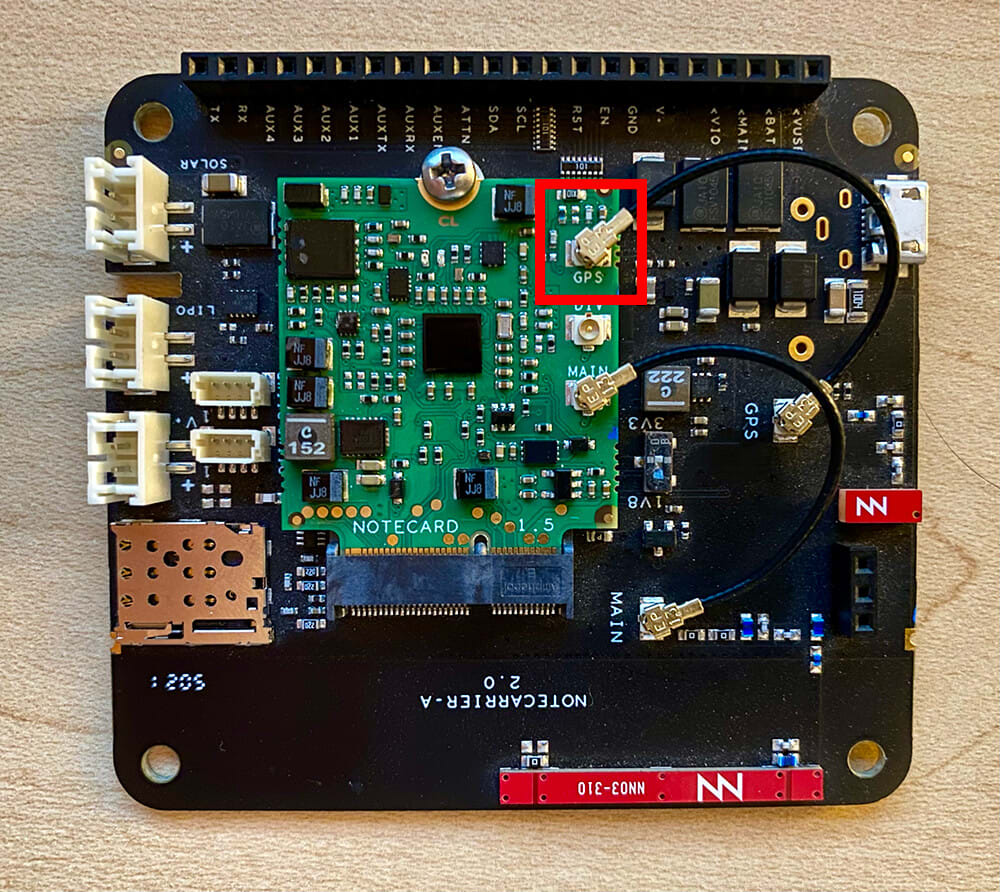
Verify that the U.FL connector from the antenna to the Notecard is seated properly. When seated properly, you will feel it "click" into place. If the U.FL connector is not fully secured, this will prevent any signal from getting through.
If you're using a Notecarrier with onboard antennas, ensure the connector labeled
GPSis properly seated on both ends of the connection (i.e. on the Notecard and the antenna).
Ensure No Antenna Signal Interference
Antennas that are touching/too close to metal objects or other devices that produce electro-magnetic interference (EMI) may prevent the establishment of a cellular connection. This is most often an issue when using a Notecarrier with onboard antennas, like the Notecarrier A.
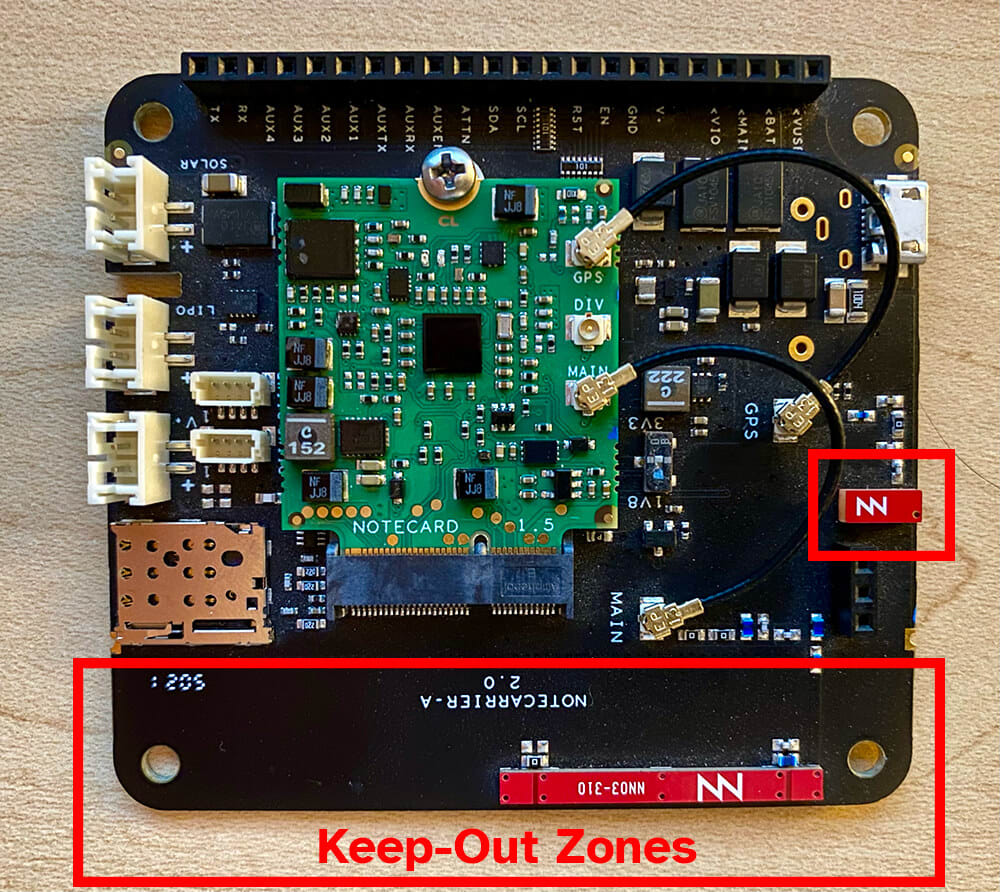
If using the Notecarrier A (or any previously sold Notecarrier with onboard antennas), ensure that there are no metal objects within the regions labelled "Keep-Out Zones". These regions represent a 10 mm cylinder around the cellular and GPS antennas mounted on the board. You should also consider elevating the Notecarrier from the table surface and moving it away from your laptop computer and other metal objects.
Ensure the Antenna is Not Damaged
Flexible antennas that are cut, or board-mounted antennas that have broken free, have been sources of connectivity issues for some of our customers.
Verify the Type of Antenna
If using an external GPS/GNSS antenna with your Notecard, be sure it supports a broad frequency range of 1164 MHz to 1591 MHz (depending on which GNSS solution you are utilizing).
Make Sure Antenna Has Clear View of Sky
It is extremely difficult to access GPS/GNSS satellites when indoors. Therefore, be sure the device is located outdoors with a clear view of the sky (i.e. verify there are no physical obstructions like buildings or trees that may be blocking access to the satellites).
Other Issues and Potential Solutions
Wideband vs Narrowband Notecards for GPS/GNSS
Use of a wideband (WB*) Notecard has proven over time to provide a better experience when using GPS/GNSS for location tracking. An added benefit is the cellular radio used on the wideband Notecards generally allows for improved cellular signal strength and quality.
An Initial Notehub Sync is Required
Notecard does not enable its internal GPS module until it has completed an initial sync with Notehub. Once that first sync is done, GPS functionality is available regardless of the connection's ongoing status.
Notecard is Paired with a Starnote
If a Notecard has ever been paired with a Starnote, it uses Starnote's GPS/GNSS module rather than its own, and it will not fall back. Several situations produce a device that never acquires a location.
-
No GPS/GNSS antenna is attached to Starnote. Starnote for Skylo with u.FL connectors needs a passive GPS/GNSS antenna on its
GPSconnector. Notecard's ownGPSu.FL connector goes unused when a Starnote is attached, so an antenna there does not help. -
The Starnote has been removed. The pairing is stored in permanent configuration that a restart and an ordinary card.restore do not clear. Send ntn.reset and restart Notecard to restore use of its internal GPS/GNSS module.
{"req":"ntn.reset"} {"req":"card.restart"} -
An AUX serial GPS mode is set. A card.aux.serial
modeof"gps"takes priority over a paired Starnote. Return AUX serial to its default mode. Note that unlikecard.location.mode, this request has no"-"reset value.{"req":"card.aux.serial","mode":"req"}
Gathering Detailed Trace Log Data
If requested by Blues Support, it is possible to capture a more detailed log of
GPS activity beyond what appears in the responses to a card.location request.
Connect your Notecard/Notecarrier to the In-Browser Terminal and
issue the trace +gps command. You will see a stream of data related to the GPS
module. This data can be sent to Blues for further investigation.
High Frequency GPS Sampling
The fastest interval at which Notecard can sample updated GPS data is 5 seconds. This constraint exists because, although GPS modules can output NMEA sentences at higher rates, sampling them more frequently would create unnecessary processing load and contribute to excessive flash wear on the Notecard.
Arduino GPS Example
Some best practices for using the Notecard's GPS module with Arduino are included in the Cold Chain Monitor accelerator application. Specifically, the referenced function in this sketch on GitHub.
