Notehub API Postman Collection
The Notehub API Postman Collection is a pre-built set of requests for the Notehub API, ready to use in the Postman API platform. It covers the full set of Notehub API endpoints, making it easy to explore, test, and prototype API calls without writing any code.
In this article you'll learn how to download and import the collection, how to set up authentication, and then how to perform your first request.
Using the Collection
The basic steps of getting up and running with the Notehub API Postman Collection are relatively straightforward.
-
If necessary, download and install the Postman app.
-
Download our Notehub API Postman Collection as a JSON file.
-
Import the collection into Postman. The easiest way to do this is to drag and drop the
.jsonfile into the Postman app.
Set Up Authentication
With the collection imported, your next step is to set up the necessary authentication for accessing the Notehub API.
-
Generate a Personal Access Token in Notehub and copy the token itself to your clipboard.
-
In Postman, click the Vault icon (bottom-right corner), then create a new entry. Set the Key to
notehub_api_token, and paste in the token from your clipboard as the Value.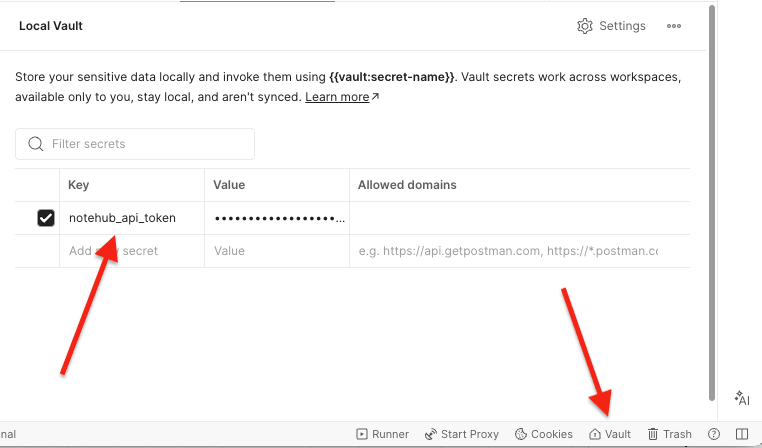
-
While still in Postman, open your Notehub API Collection by clicking the Notehub API folder.
-
Next, open the collection's Scripts tab, and then paste in the script below as a Pre-request script.
pm.vault.get("notehub_api_token")
  .then(token => {
    pm.variables.set("bearerToken", token);
});
Here's what everything should look like when you're all set.
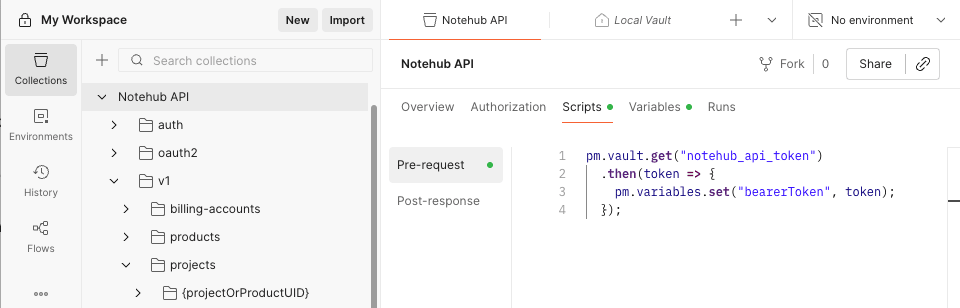
In Postman, pre-request scripts run before every request in a collection.
In this case, the pre-request script takes the notehub_api_token value
from your vault and sets it as a variable named "bearerToken". All
Notehub API requests use the "bearerToken" variable for authorization,
so once you have this script in place you're ready to make your first
request.
Performing a Request
The Notehub API collection is organized by folders that match the URLs of
the underlying requests. For example, the
Get Projects request
uses a URL of /v1/projects, and therefore its request in Postman is in a
Notehub API/v1/projects folder.
Let's invoke this request so you can see how it all works.
-
Within Postman, select the Get Projects request. Look for it under
Notehub API/v1/projects/Get Projectsin your Notehub API collection (see screenshot below). -
Invoke the request by clicking the blue Send button. If all went well, you should see the response at the bottom of the app in the Body.
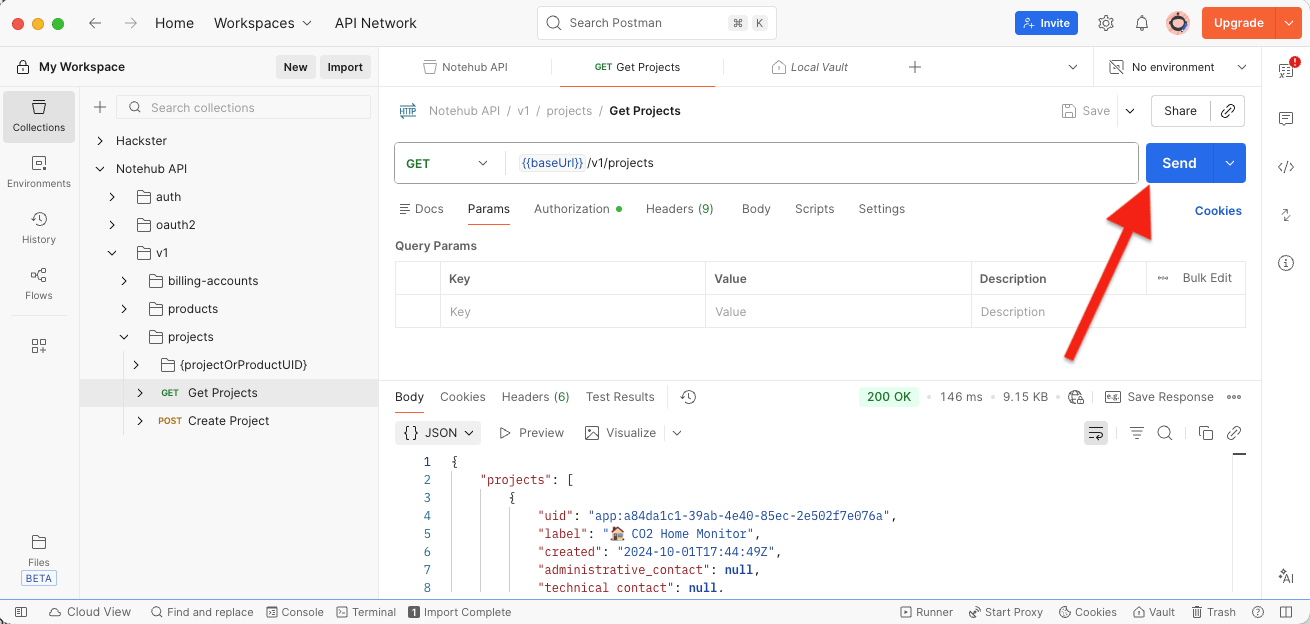
And that's it! The great thing about using the Postman collection is it prefills all available request arguments. When performing GET requests the arguments will be listed in the Query Params.
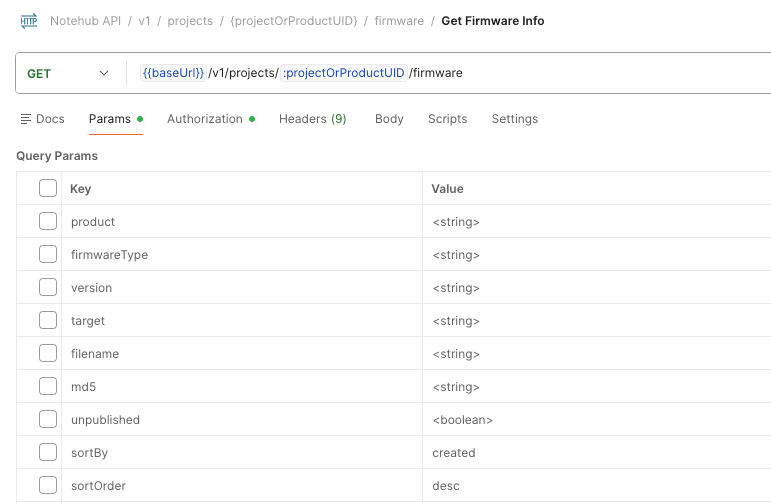
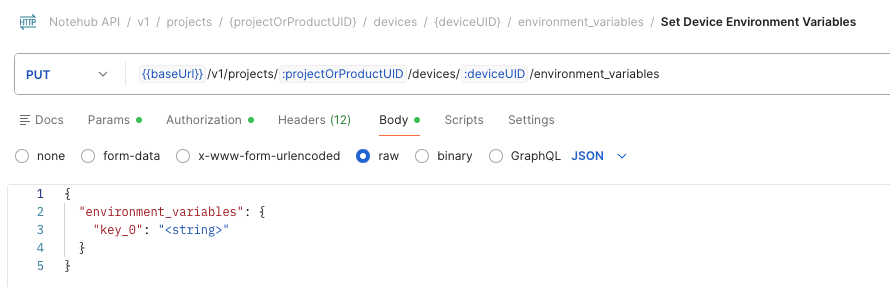
And when performing PUT and POST requests the available arguments are prefilled in the request's Body.